

Schedule re-indexing
Scheduled reindexing keeps an index synchronized with its source automatically, instead of you having to reindex by hand every time the underlying content changes.
Before you schedule
Section titled “Before you schedule”- The index must already exist and be in a usable state — Completed or Partially Indexed. An index in Failed or Stopped state needs a successful reindex first.
- If the toolkit requires credentials for the scheduled run, you’ll need one available: private credentials in a personal project, project credentials in a team project.
Set a schedule
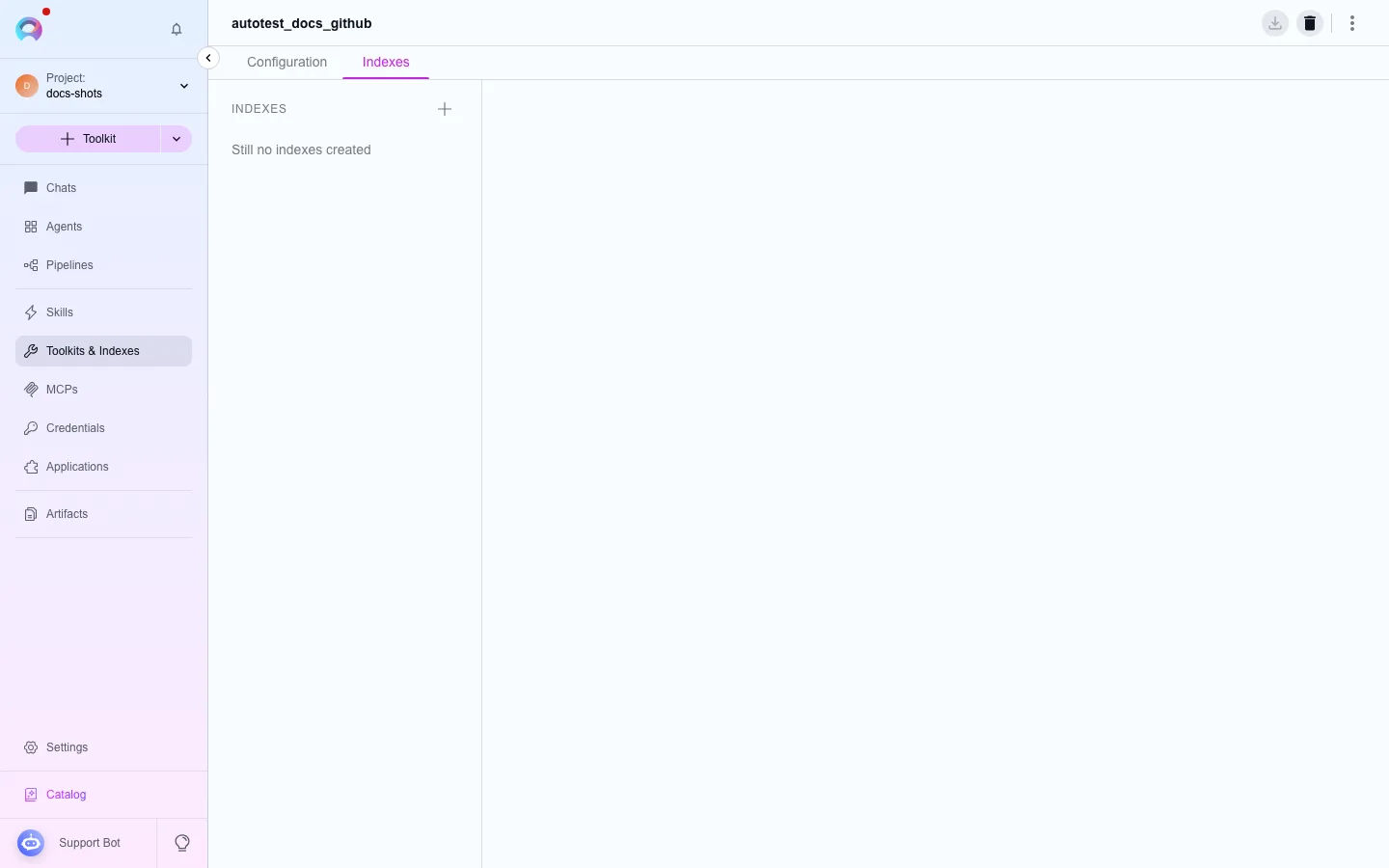
Section titled “Set a schedule”- Open the index’s page from the toolkit’s Indexes tab.
- In the Schedule section, select + Schedule if none exists yet, or the edit icon on an existing schedule.
- Choose a cron expression — either with the visual builder or by typing one directly (format: minute, hour, day of month, month, day of week).
- If the toolkit needs credentials for the scheduled run, pick one from the dropdown.
- Save. The schedule shows its next run time, and you can turn it on or off later without losing the configured expression.
Notifications and history
Section titled “Notifications and history”A scheduled reindex raises a notification when it completes, just like a manual one — see Notifications. Scheduled runs also appear in the index’s history alongside manual reindexes, so you can confirm a schedule actually ran.
Next steps
Section titled “Next steps”- Use the Indexes tab for the full index lifecycle.
- Index data from a source for source-specific setup.