

Fork an agent or toolkit
Forking copies an agent, pipeline or toolkit into a different project in place — no file download or upload, unlike export/import.
When to fork instead of exporting
Section titled “When to fork instead of exporting”Use fork when you’re moving an entity between projects you already have access to — for example, taking a working agent from a private project into a shared team project, or copying a public agent from the catalogue into your own project so you can customize it. Use import and export instead when the destination is a different deployment entirely, or when you want a file you can archive, review, or send to someone outside the platform.
Select a version
Open the agent or pipeline and select the version you want to copy — only the currently selected version is forked.
Open Fork
Click the toolbar’s three-dot menu and choose Fork.
Choose a target project
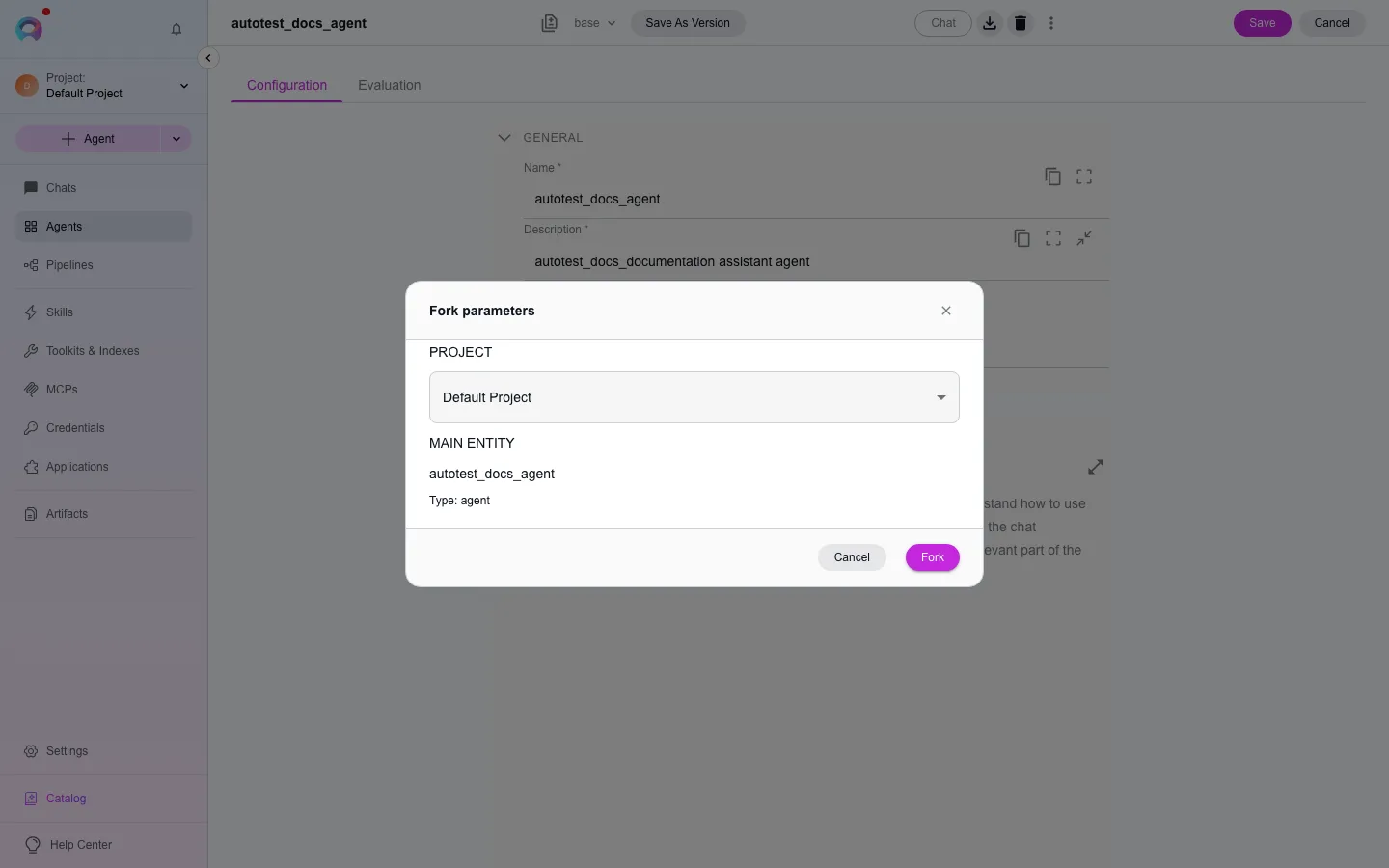
In the dialog, pick the destination project. You need fork permission there. If the agent uses other agents as nested toolkits, those are forked alongside it into the same target project.
Fork
Confirm. Elitea copies the entity into the target project and takes you to it there.
The original model is kept if it’s available in the destination project; otherwise the fork falls back to a model that is. Toolkit credentials are never copied — reconfigure them manually in the target project after forking.
Toolkits can be forked the same way from their own three-dot menu.