

Import and export entities
Export lets you back up or move an agent, pipeline, toolkit, skill or conversation as a file; import brings an exported agent or pipeline back into a project.
Export an agent or pipeline
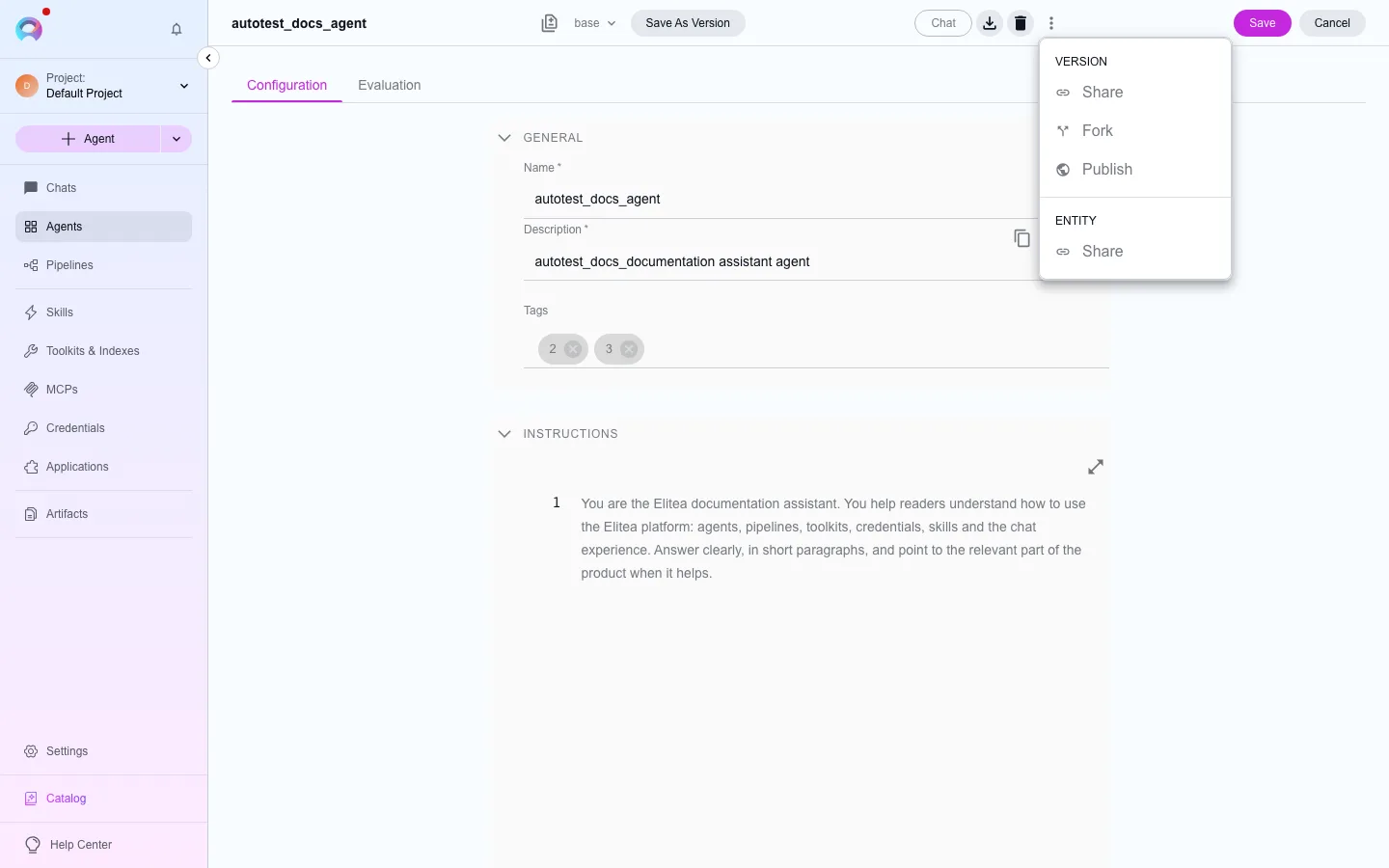
Section titled “Export an agent or pipeline”Open the agent or pipeline, then use Export in the toolbar’s three-dot menu. The download is a JSON document containing the entity’s currently selected version, its associated toolkits, and any skills attached to it. Authentication credentials are never included — you reconfigure them after import.
Import an agent or pipeline
Section titled “Import an agent or pipeline”Open the import dialog
On the Agents or Pipelines list, click Import and choose a
.jsonexport file.Review the summary
Elitea reads the file and shows the agent or pipeline names, and how many toolkits and skills it carries, before anything is created.
Confirm
Confirm the import. The entity is created in your current project using the file’s exported configuration; model settings fall back to the project’s own configured LLM and embedding defaults where the export didn’t carry a credential.
Reconfigure credentials
Any toolkit that needs a credential (API key, token) must be reconfigured manually — exports never carry secrets.
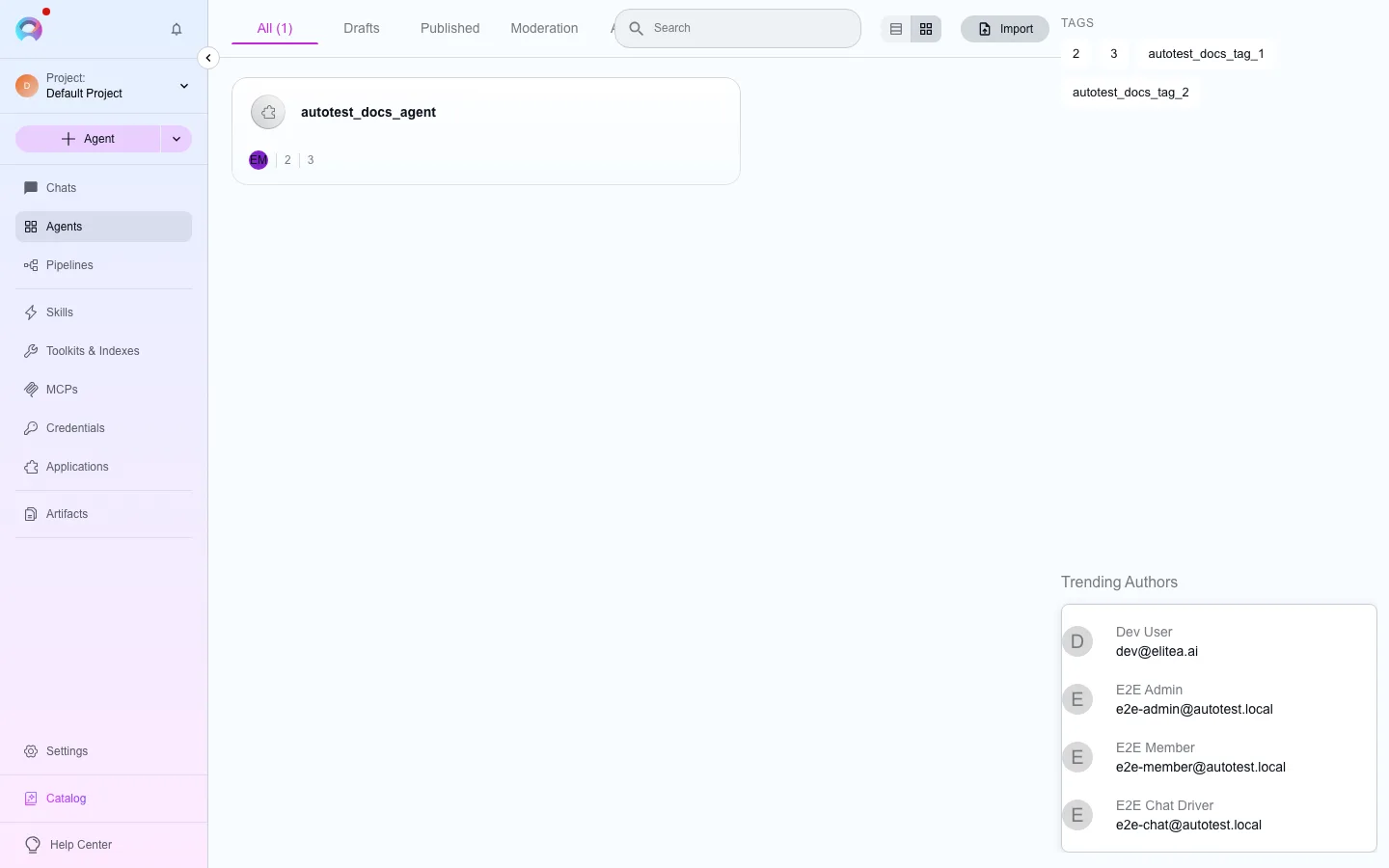
Importing requires import permission in the destination project; the Import button is disabled without it. A file that isn’t valid JSON, or has no exported agents in it, is rejected with an explanation rather than silently failing.
Export and import a skill
Section titled “Export and import a skill”Skills export as a Markdown file (Export on a skill’s page) and import the same way, from the Skills list’s Import button. See Create and share a skill for the full skill lifecycle.
Export a toolkit
Section titled “Export a toolkit”A toolkit’s three-dot menu offers Export, producing a file with its type, name, settings and enabled tools — again with credentials excluded.
Export a conversation
Section titled “Export a conversation”A conversation can be exported from its options menu, producing a copy of the conversation for backup or sharing outside the app.