

Version agents and pipelines
Agents and pipelines keep a version history. The first save always creates a version named base; from there you can keep editing base, or branch off into named versions you can compare, publish, and share independently.
Save a version
Section titled “Save a version”Work in base
Every new agent or pipeline starts on the base version. Edit and save it as many times as you like — nothing else is required to keep working.
Save as a new version
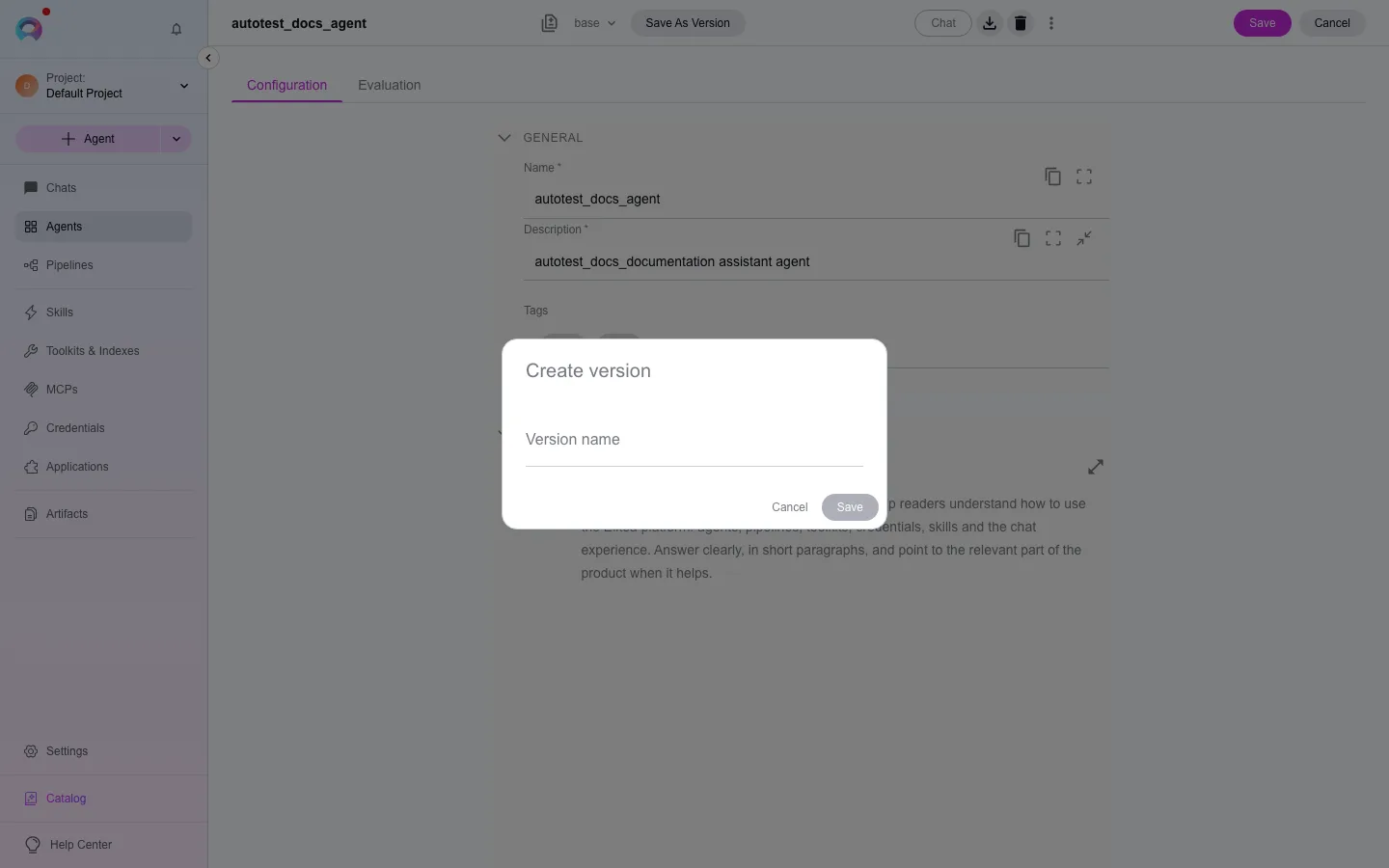
When you want to preserve the current configuration, click Save As Version in the toolbar and enter a name: alphanumeric characters, hyphens and underscores only, no spaces, up to 20 characters, and unique within the entity.
baseis reserved and cannot be reused as a custom name.Switch and edit
Use the version dropdown next to the entity name to switch versions. Saving always updates whichever version is currently selected — switch first, then save, if you want to update a specific version rather than base.
Set a default version
Section titled “Set a default version”A default version is the one automatically selected when the agent is added to a conversation, used as a toolkit in another agent or pipeline, or exposed as an MCP toolkit. Pin a version as default from the version dropdown or the toolbar’s three-dot menu, then confirm in the dialog. Only Draft versions can be set as default; published versions and the currently-set default cannot be deleted until you designate a different one.
If no version is explicitly set as default, base is used implicitly.
Compare versions
Section titled “Compare versions”When an entity has two or more versions, a Compare versions action becomes available from the toolbar’s three-dot menu. It opens a read-only, side-by-side comparison of any two versions — useful for checking what changed before you set a new default or publish.
Share a version
Section titled “Share a version”- Copy link copies a direct URL to the currently selected version to your clipboard. Anyone with access to the project can open it; the link does not grant access by itself, and it stops resolving if the version is later deleted.
- Export downloads the current version as a Markdown file. If the version references nested agents or pipelines, the export becomes a ZIP containing one Markdown file per entity (the main one plus each dependency). Import the file into another project with Import and export entities.
Publishing an agent (see Publish agents and skills) only exports its published versions.
Read the release history
Section titled “Read the release history”Each time you publish an agent’s version, Elitea records an immutable release, and each save of a version records a revision with its author and what changed. Pipelines are never published, so they have no releases.
- Open the agent.
- Select the ⋮ menu beside the version bar, and select Release history.
- On the Releases tab, the release marked Current is the one new runs use. Select Changes on a release to see what changed since the release before it.
- On the Revisions of this version tab, each revision shows who saved it, when, and each changed field as
replace /path: new value.
Roll back to an earlier release
Section titled “Roll back to an earlier release”When a new release behaves badly, make an earlier release current again. You need the permission to publish agents.
- Open Release history as described above.
- On the earlier release, select Roll back to this. Only published releases that are not current offer it.
- Type a reason. It is recorded in the audit event of the rollback.
- Select Roll back.
New runs use that release. Runs already in progress keep the release they started with. If a toolkit of that release was changed after it was published, the rollback is refused with release_toolkit_drifted, because the release can no longer run as it was. Restore the toolkit’s settings, or publish a corrected version instead.
See Agent lifecycle for what a release records and the evidence it produces.
Delete a version
Section titled “Delete a version”You can delete any version except base and the current default. If other agents or pipelines reference the version you’re deleting, a replacement-version dialog lists them and lets you pick which version they should point to instead; the system updates those references automatically.