Use canvas
Canvas turns a code block, table, Mermaid diagram, or a piece of prose from an assistant’s reply into its own editor, so you can refine it without leaving the conversation.
Open canvas
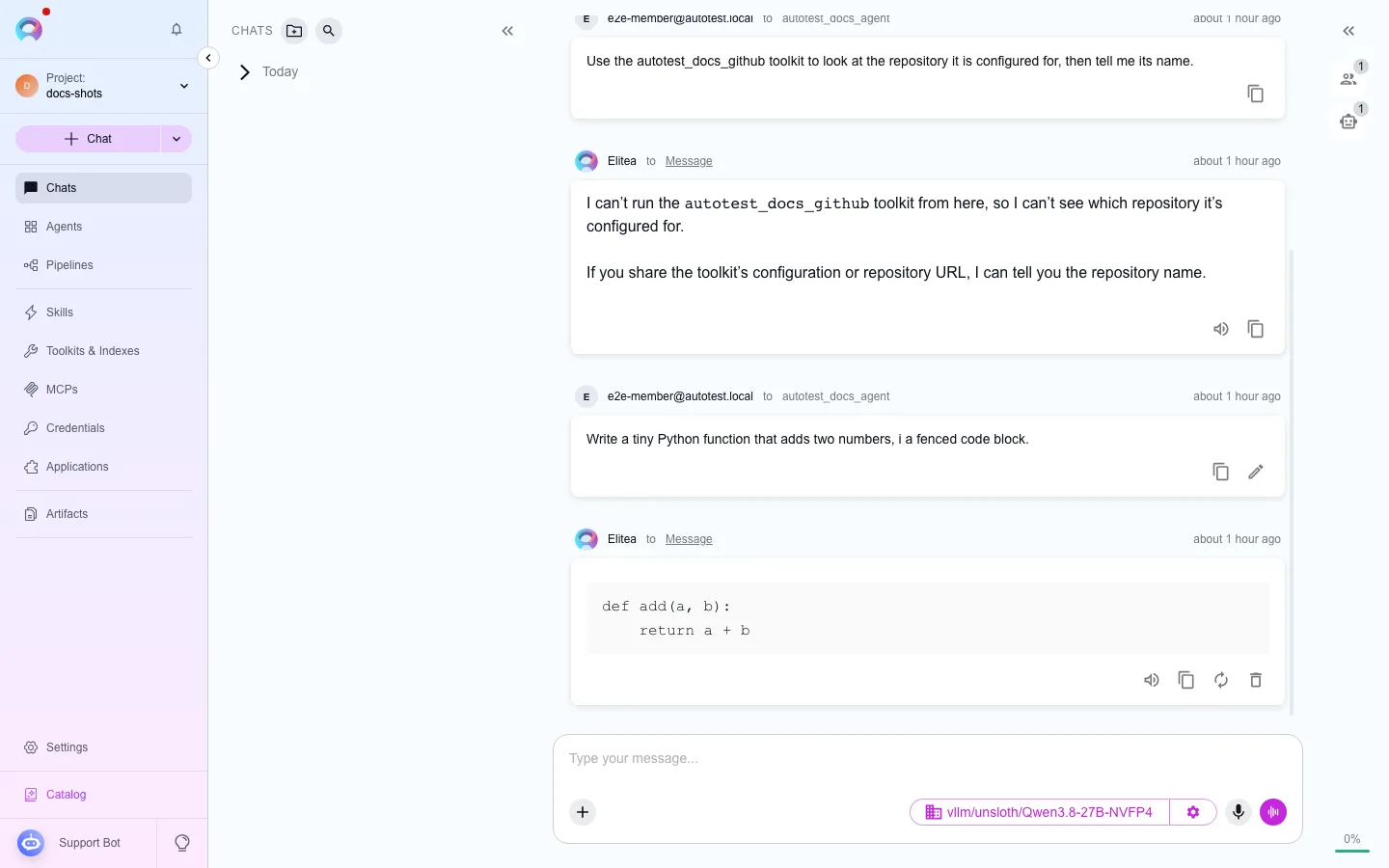
Section titled “Open canvas”Ask a model to generate something canvas supports — a script, a Markdown table, a Mermaid diagram, or a written passage — then click the edit (pencil) icon that appears on that block. This opens the canvas editor for just that piece of content.
Syntax-highlighted editing with its own undo/redo history. Use Copy to copy the current content to your clipboard, or Save to persist your edits back to the conversation.
A spreadsheet-like view over the Markdown table. Edit cells directly, then Save, or export the table to CSV or XLSX.
Edit the underlying Mermaid source with a live preview, then Save.
A rich-text editor for prose — headings, bold/italic/inline code, bullet and numbered lists, blockquotes, links, and basic tables, all backed by Markdown as the underlying source. Format with the toolbar or the usual keyboard shortcuts, with its own undo/redo history, then Save. Saving to artifacts writes the document out as a plain .md file.
Opening a whole reply as a document
Section titled “Opening a whole reply as a document”You don’t have to highlight anything first: an assistant reply that hasn’t already been split into a canvas gets an Open as document icon in its action row (alongside Copy, Regenerate, and Delete). Click it to open the whole answer in the rich-text document editor.
Turning a highlighted passage into canvas
Section titled “Turning a highlighted passage into canvas”Highlighting part of a reply and using the selection’s Create canvas control carves that range out into its own canvas block. A highlighted passage of prose becomes a document canvas; a highlighted fenced code block (``` to ```) becomes a code canvas.
Real-time collaboration
Section titled “Real-time collaboration”If more than one person has the same conversation open, everyone sees who else is editing a canvas at the same time — canvas is a collaboratively edited block, not a private draft.
Closing and reopening a canvas
Section titled “Closing and reopening a canvas”Closing the canvas panel doesn’t discard your edits as long as you’ve saved — the block in the conversation updates with your latest saved version. Reopening the same block later (by clicking its edit icon again) picks up where you left off, since it’s editing the message’s content directly rather than a separate draft.
Open a stored file in canvas
Section titled “Open a stored file in canvas”Canvas isn’t limited to blocks generated in the current turn — it can also open a previously stored text-like file (code, Markdown or plain text, CSV/TSV, or Mermaid), from two places:
- A message attachment. Hover a text-like attachment card in the conversation and click its Open in canvas icon.
- An artifact bucket file. In Artifacts, open a file’s preview and click Open in canvas in its toolbar.
Either way, the file’s content loads into the editor matching its kind — code gets syntax highlighting, a .csv/.tsv file opens as a table, a .mmd/.mermaid file opens as a diagram with a live preview, and a .md/.markdown/.txt file opens in the rich-text document editor. Files over 2 MB aren’t opened in canvas. Office formats such as .docx aren’t opened either — canvas has no converter for them — so download the file instead of opening it in canvas.
Save to artifacts
Section titled “Save to artifacts”The canvas header’s Save to artifacts button (the floppy-disk icon) writes the current document to the artifact store — this works whether the canvas was opened from a stored file or generated in the current turn. Choose a bucket, confirm or change the filename (a canvas opened from a file starts pre-filled with the same bucket and name), and save. If a file with that name already exists in the chosen bucket, you’re asked to confirm the overwrite; saving back to the SAME file a canvas was opened from skips that confirmation, since that is the ordinary re-save. After saving, further saves from that canvas update the same object.
Related
Section titled “Related”