

Artifacts
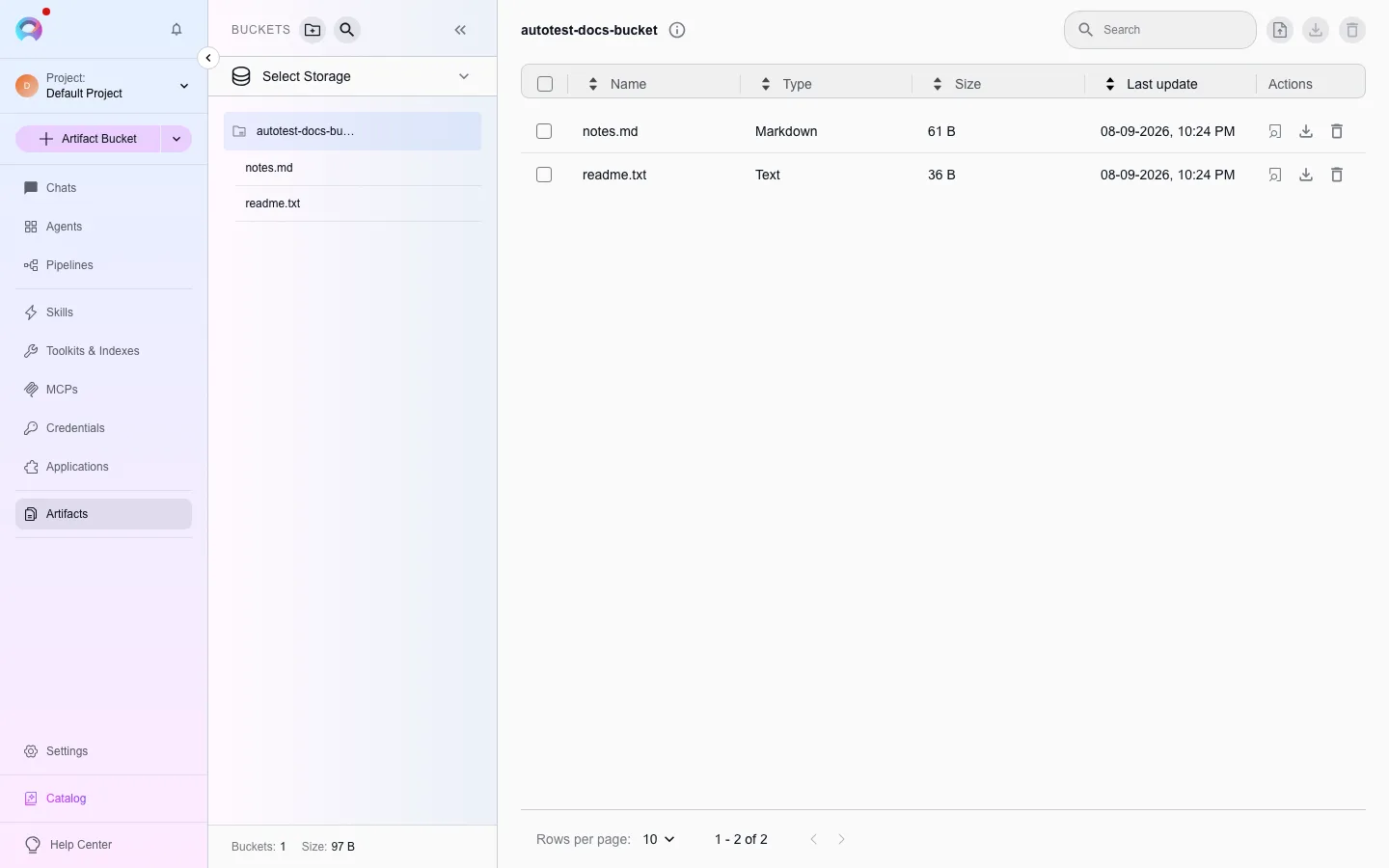
Artifacts are project-scoped, bucket-organized file storage that agents, pipelines, and conversations read from and write to. Chat attachments and generated images land here automatically in a default attachments bucket; you can also create buckets of your own.
Create a bucket
Section titled “Create a bucket”- Select + Create Bucket.
- Enter a Name (starts with a letter; letters, numbers, and hyphens only; 56 characters max).
- Select Save. Creating a bucket does not set a retention period — that is configured separately, after the bucket exists.
Retention
Section titled “Retention”Open a bucket’s edit view to set a retention period in whole days. Leave it empty to keep files indefinitely; set it and files older than that many days become eligible for automatic deletion, which cannot be undone.
Upload, preview, and manage files
Section titled “Upload, preview, and manage files”Upload by dragging files onto the file table, using the upload button, or from a bucket’s context menu. Select a file’s view/edit icon to preview it — code, Markdown, MDX, CSV/TSV, Mermaid, images, and DOCX all render with type-appropriate views, and most can be edited in place and saved back (files over 2 MB cannot be previewed or edited). A text-like file’s preview also offers Open in canvas, which opens it in the richer Canvas editor — syntax highlighting, a table grid, or a Mermaid live preview — and can save the edit back to the same file. Download a single file or select several and download them together as a ZIP. Deleting all files in a folder removes the folder too — empty folders are not supported.
Manage bucket access
Section titled “Manage bucket access”In team and public projects, open a bucket’s Manage permissions action to set per-user exceptions to the default read/write access: Read-only or No access for one or more users. Selecting the default read/write option in an edit removes the exception. This is not available in personal projects.
Retention notifications
Section titled “Retention notifications”When a bucket’s retention period is about to delete files, the bucket’s owner gets a notification 24 hours ahead so there is time to back up anything still needed. See Notifications.
Use a bucket from an agent or pipeline
Section titled “Use a bucket from an agent or pipeline”Attach the built-in Artifact toolkit type to an agent or pipeline to let it read and write files in a bucket during a run — useful for a workflow that produces a report, or one that reads reference material uploaded ahead of time. An Artifact toolkit is also index-capable, so an agent can search across everything in a bucket instead of reading one file at a time. See Indexing overview.