

Skills
A skill is a focused, reusable instruction set — write it once in Markdown, attach it to as many agents as you need, and invoke it mid-conversation with ~skill-name. Skills are available in team and personal projects only; the Skills menu is hidden when the Public project is selected.
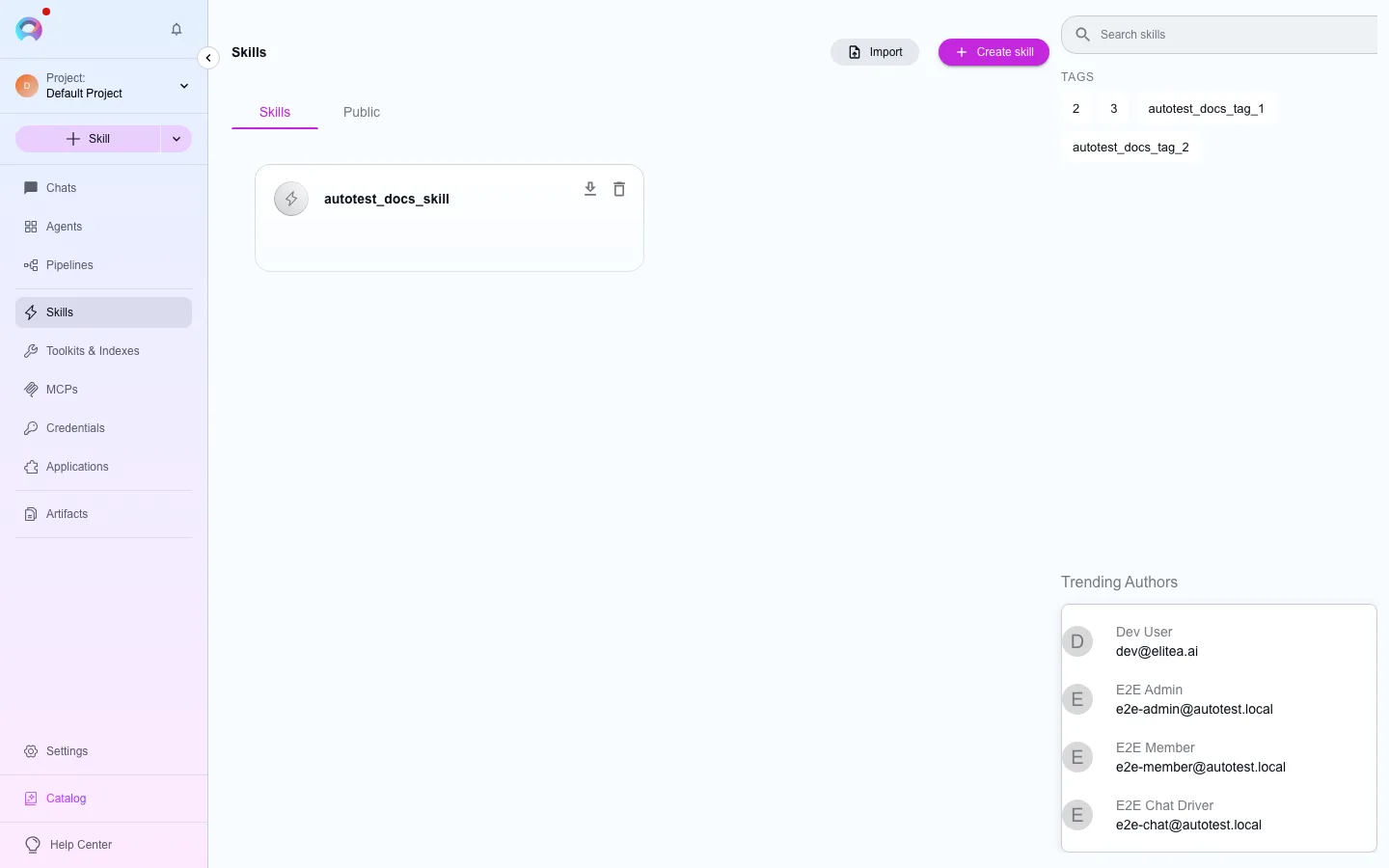
The Skills page has two tabs: Skills (the project’s own skills) and Public (the published catalog). Its toolbar has the search box, Filters (tags and authors, in the side panel), Import and + New skill; see Page layout.
Create a skill
Section titled “Create a skill”Open the form
Select + New skill in the Skills page toolbar, or the + next to Skills in the sidebar.Fill in General
Give it a Name (lowercase letters, digits, and hyphens only, no leading/trailing hyphen, 64 characters max, and it must not contain “claude” or “anthropic”), a Description, and optional tags.Write Instructions
Enter the skill’s instructions in the Markdown editor, up to 5,000 characters. Toggle Edit/Preview to check formatting.Save
The skill opens with a test chat panel on the right so you can verify its behavior before attaching it to any agent.
Test a skill
Section titled “Test a skill”The right-hand test chat is ephemeral — it is not saved and clears when you leave the page. Pick a model and adjust its settings the same way you would in a normal conversation, including voice input and playback if configured for the project.
Versions
Section titled “Versions”Skills keep a version history, the same base-plus-named-versions model agents and pipelines use:
Work in base
Every new skill starts on the base version. Edit and save it as many times as you like.
Save as a new version
Click New version and give it a name.
baseis reserved and cannot be reused as a custom name; a duplicate name is rejected.Switch and edit
Use the version dropdown next to the skill’s name to switch versions. Saving always updates whichever version is currently selected.
Set default pins a version as the one a new attachment to an agent proposes — it does not change what an agent that has already attached this skill uses; that stays fixed at attach time (see Attach a skill to an agent below). You cannot delete the default version or base, and a published version is frozen until you unpublish it.
Compare versions opens a read-only, side-by-side diff of the current version’s instructions and tags against any other version — useful for checking what changed before you restore or publish.
Restore copies a named version’s instructions and tags back onto base, overwriting base’s current content. This is the skill equivalent of agents’ “Set as default”: skills have no separate “currently active” pointer to repoint, so restoring means writing the content directly onto the one version the unversioned editor and every new attachment read.
Delete version removes any version except base, the current default, or a published one.
Export, import, fork, and publish
Section titled “Export, import, fork, and publish”- Export downloads the current version as a
.mdfile; Import in the Skills page toolbar uploads one back (always as a newbaseversion, regardless of the version it was exported from). - Fork copies a skill version into a project you choose.
- Publish submits a version to Catalog; Unpublish removes it. See Skill publishing.
Attach a skill to an agent
Section titled “Attach a skill to an agent”Open the agent, scroll to its Skills section, and select + Skill to search and attach — up to five skills per agent version. Each attachment uses the skill’s base version by default; select the version name on the card to switch. Attaching requires the agent to be saved first.
Use a skill in chat
Section titled “Use a skill in chat”In a conversation with an agent that has skills attached, type ~ to open a picker of that agent’s skills, then select one to invoke its instructions for that turn.
Delete a skill
Section titled “Delete a skill”Deleting a skill removes it from every agent it is attached to. Confirm in the dialog — unlike the agent editor’s delete confirmation, it does not ask you to type the skill’s name.