

Notifications
Elitea delivers real-time notifications over a live connection for events like publish decisions, mentions, budget thresholds, and expiring tokens.
Quick popover
Section titled “Quick popover”Select the bell icon in the sidebar’s header for a fast, unread-only view: up to 5 items, with Mark as read on hover and Mark all as read / View all in the footer. A dot on the bell means there is something unread. In the desktop app, the bell sits in the sidebar’s title bar, beside Hide sidebar.
System notifications (desktop app)
Section titled “System notifications (desktop app)”While the desktop app’s window is in the background, a new notification also shows as a system notification: its kind as the title and its message as the text. Nothing shows while you are working in the app — the bell has it. The app’s Dock icon badge counts unread notifications together with approvals waiting for you. Select a system notification to bring the app to the front.
To stop system notifications, turn off Show system notifications at the top of Settings › Notifications (desktop app only). The bell and Notifications Center are not affected. Your operating system’s own notification settings for Elitea also apply.
Notifications Center
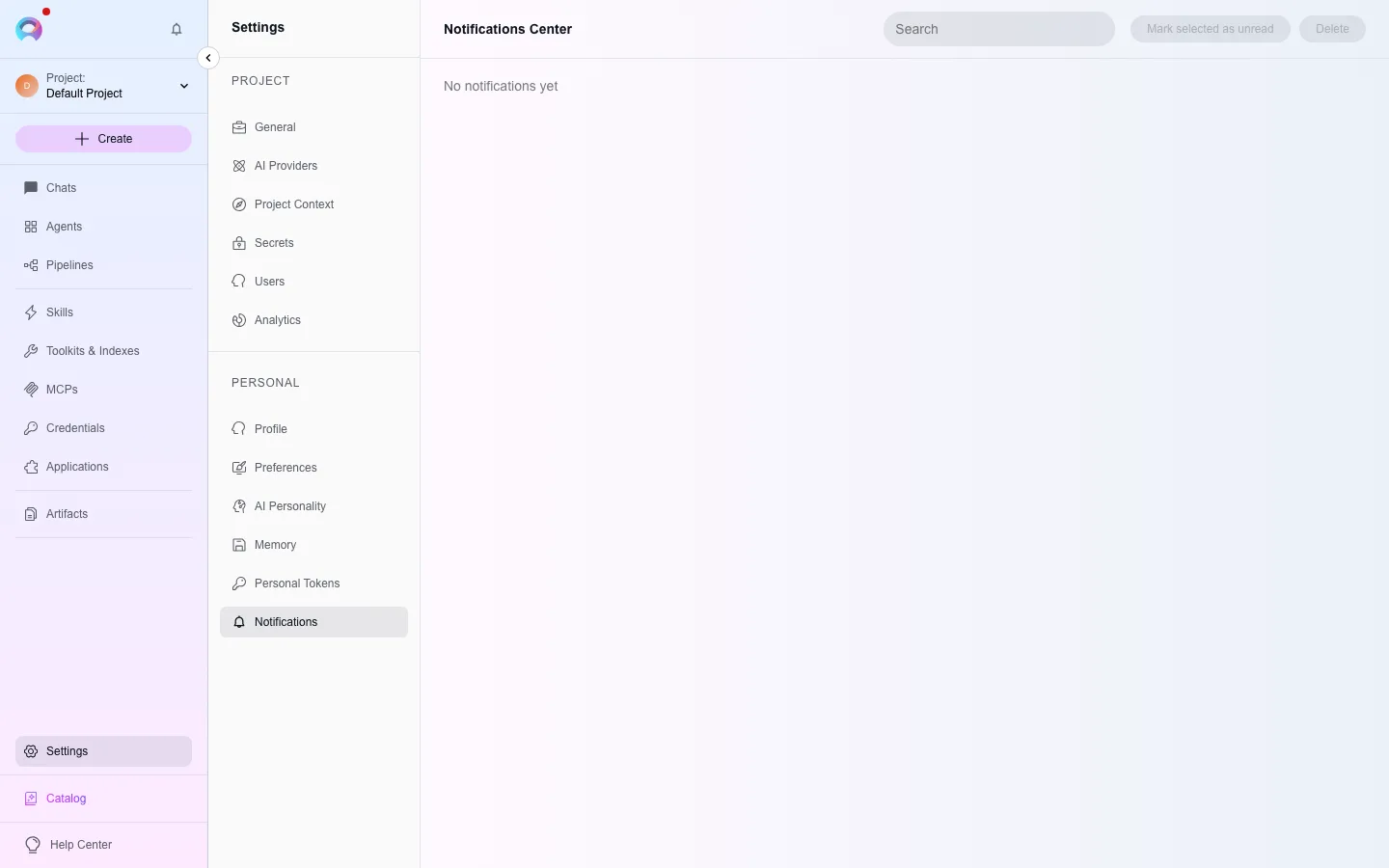
Section titled “Notifications Center”Settings › Notifications shows every notification, read and unread, with search by message text, sortable Type and Date & Time columns, and bulk Mark as read, Mark as unread, and Delete actions.
What triggers a notification
Section titled “What triggers a notification”| Event | What it means |
|---|---|
| Publish approved / rejected | Your published agent or skill version was reviewed. |
| Mentioned or added to a conversation | A teammate @mentioned you or added you to a conversation. |
| Index created, reindexed, or failed | A toolkit index finished or failed. |
| Bucket expiration warning | Files in an artifact bucket will be deleted within 24 hours under its retention policy. |
| Personal access token expiring | A token will stop working within 24 hours. |
| Project or member budget threshold / limit reached | Shared-model spend is near or at its monthly limit. |
Several of these link straight to the relevant page — for example, an expiring-token notification opens Settings › Personal Tokens, and a budget notification opens Settings › Usage.