

Project settings
Project settings cover the parts of a project every member shares: its identity, its background context, its secrets, and who belongs to it.
General
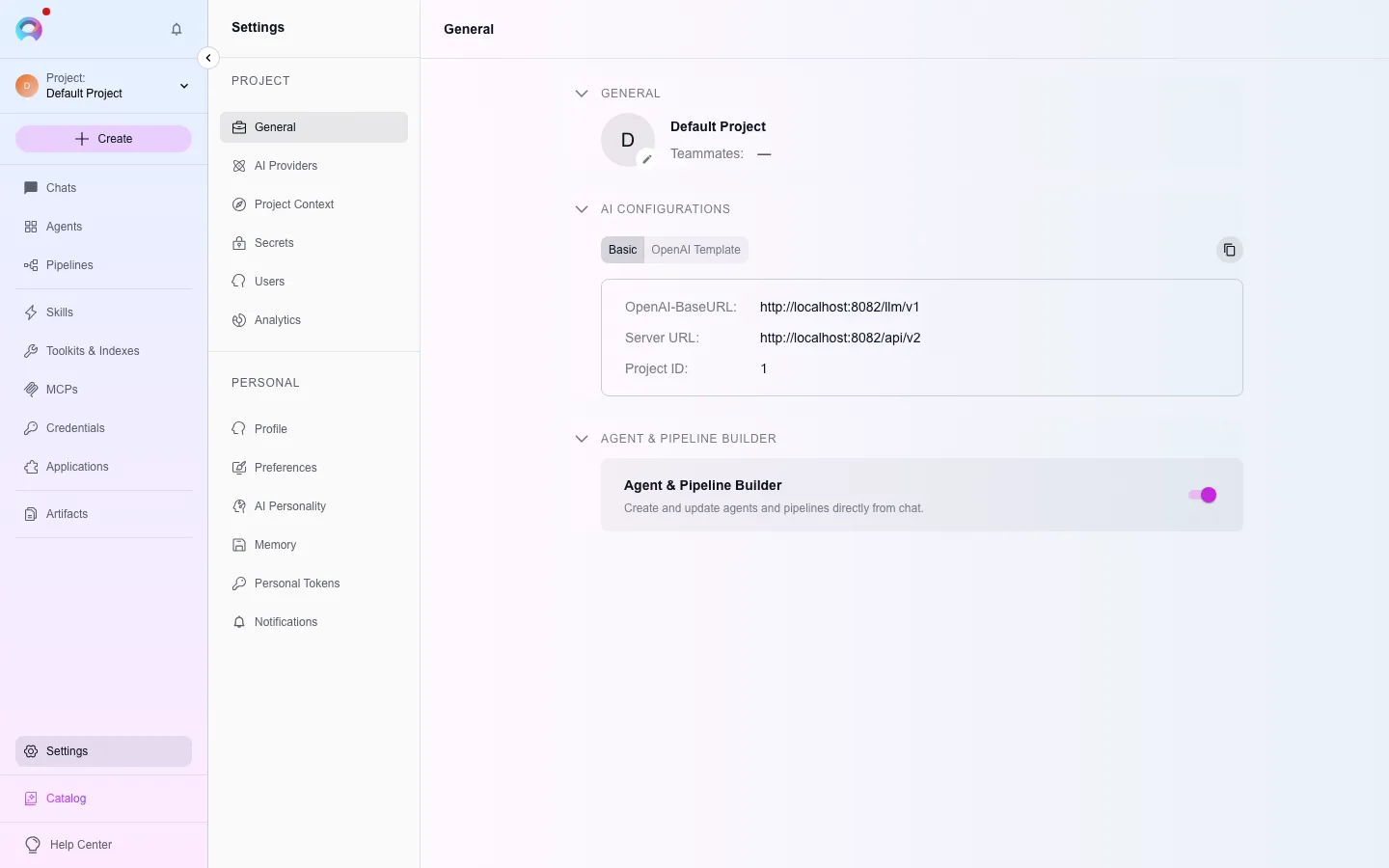
Section titled “General”Settings › General shows the project’s icon, name, and teammate count (hidden for the Public project), plus connection details for OpenAI-compatible clients — an OpenAI-BaseURL, server URL, and project ID you can copy for external tooling. A Default Modules section lets you turn modules (image creation, data analysis, planner, smart tools selection, swarm mode, and more) on or off by default for chats and agents project-wide; members can still override the default per conversation.
Project Context
Section titled “Project Context”Project Context is a background document — up to 2,500 characters of Markdown — that Elitea applies silently to every AI interaction in the project: domain, terminology, workflows, and constraints the model should always know. It is visible only in the Public project.
Create or generate a draft
Select Create to write it manually, or Build with AI to generate a first draft from a plain-language description.Refine
Use Edit with AI to describe a change and review a side-by-side diff before it saves.Save
Turning Project Context off preserves its content — you can turn it back on later.
Individual agents can opt out with Ignore Project Context in their Advanced settings.
Secrets
Section titled “Secrets”Settings › Secrets is the project’s vault for sensitive values — passwords, tokens, API keys — that credentials and toolkits reference instead of storing plain text. Only Admin, System, or Editor roles can access this section.
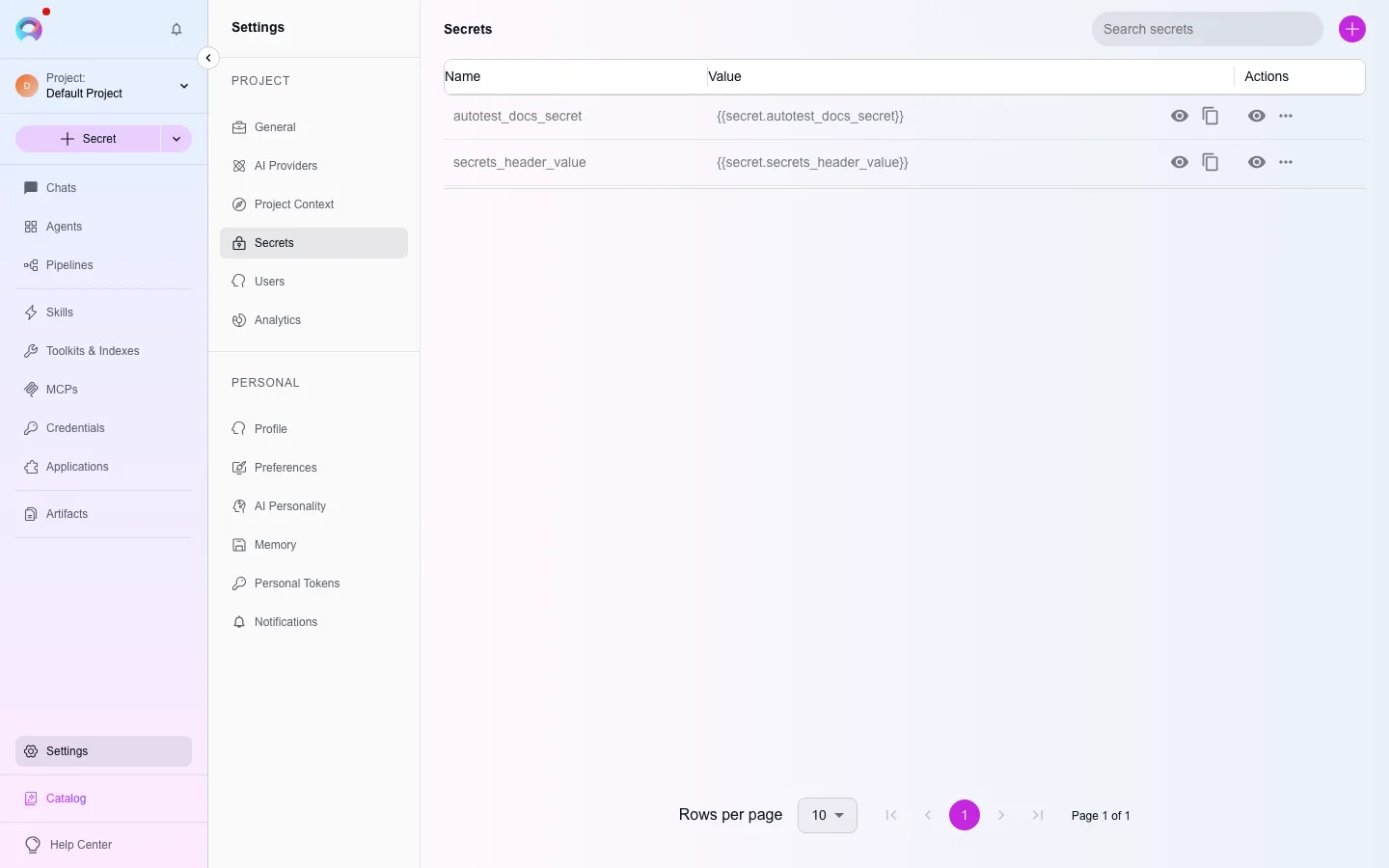
- Create a secret with a unique name (letters, digits, underscores only) and a value; the name cannot change afterward.
- Hide removes a secret from the UI and from future selection, while credentials already using it keep working.
- Delete removes it permanently — any credential using it fails authentication immediately.
- Every mutation is applied under a row lock, so two people editing the same secret at once no longer clobber each other’s change.
Settings › Users lists project members with their role and last login; it is hidden for a personal project. Only Admin can invite, edit roles for, or remove members.
Invite
Select + Invite users, enter one or more email addresses (comma-separated), and pick one or more roles.Adjust roles
Edit a single user’s roles, or select several and batch-edit them together.Remove
Delete a user individually or in a batch, with confirmation.
Available roles are System, Admin, Editor, Viewer, and Monitor; a user can hold more than one.