

Credentials
A credential holds the authentication information — API key, token, username/password, or similar — a toolkit or AI provider needs to connect to an external service. Storing credentials centrally means you configure them once and reuse them across multiple toolkits and agents.
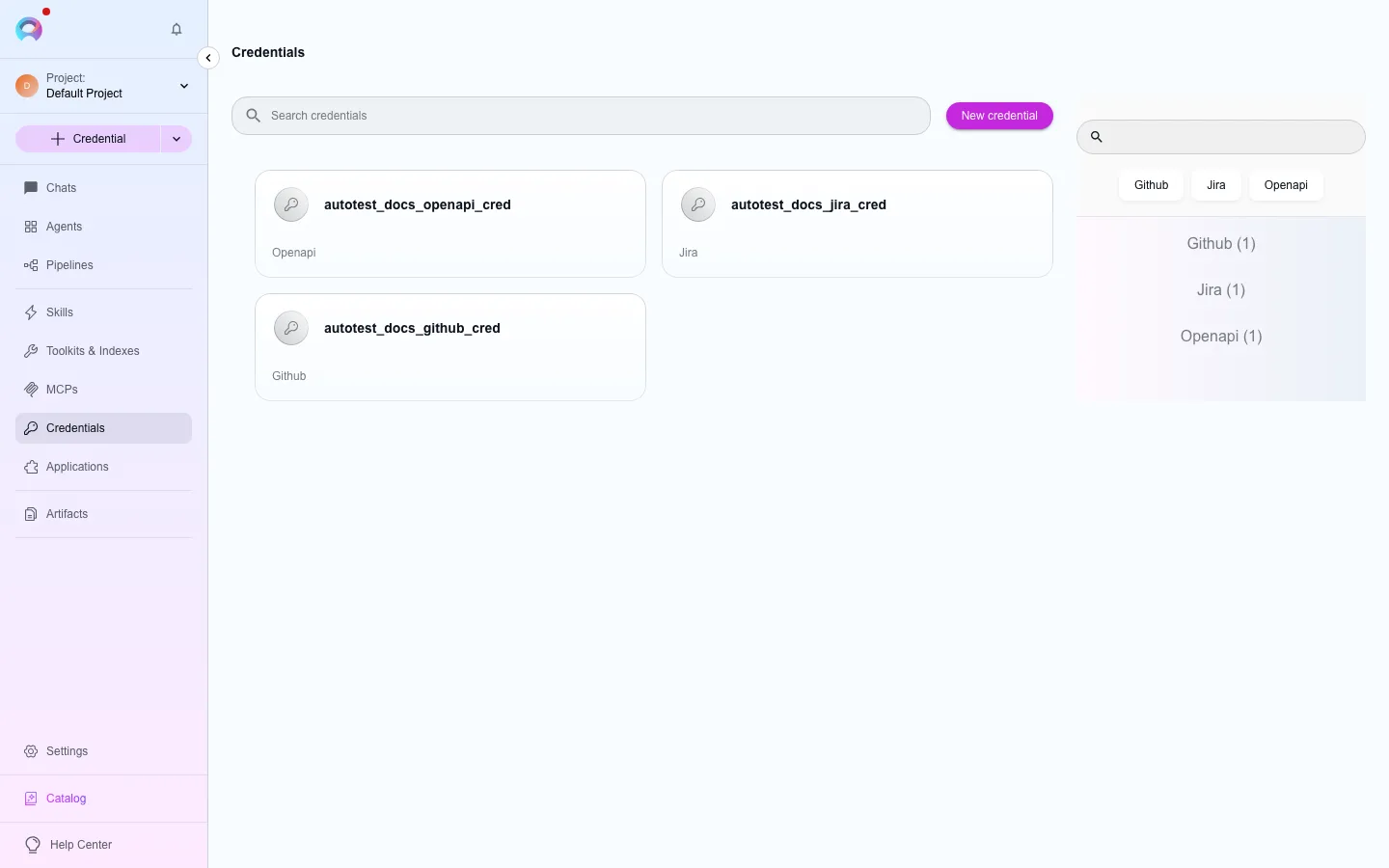
The Credentials page shows how many credentials the project has, a search box, Filters and + New credential in its toolbar; see Page layout. Filters, in the side panel, has the credential types to filter by.
Create a credential
Section titled “Create a credential”Start creation
Select + New credential in the Credentials page toolbar.Pick a type
Choose a credential type from the categorized list, or search for it with the search box in the toolbar (code repositories, project management, testing, and more — matching the toolkit catalogue).Fill in details
Enter Display Name, a unique ID, and the type’s specific fields — a URL, a username, and a key or token.Test (optional)
Where offered, select Test Connection to verify the values before saving.Save
Select Save.
Project vs. private credentials
Section titled “Project vs. private credentials”A credential can be shared with the team (visible to any project member configuring a toolkit) or kept private to you. Team-shared toolkits sometimes require each member to hold a matching private credential — see the shared-credential note on the Toolkits page.
Edit or delete a credential
Section titled “Edit or delete a credential”Open a credential from the dashboard to update its name or parameters and select Save, or use the delete action and confirm by typing its name. Deleting a credential in use will break the toolkit or agent that depends on it.
Assign a credential
Section titled “Assign a credential”When creating or editing a toolkit or an AI provider configuration, open its Credentials dropdown and select an existing credential, or create one inline.