

Toolkits
A toolkit is a configured integration with an external service, or with an Elitea-native capability, that gives agents and pipelines the ability to act. Elitea serves 52 toolkit types; see the full toolkit catalogue for the list, categories, and which deployment worker runs each one.
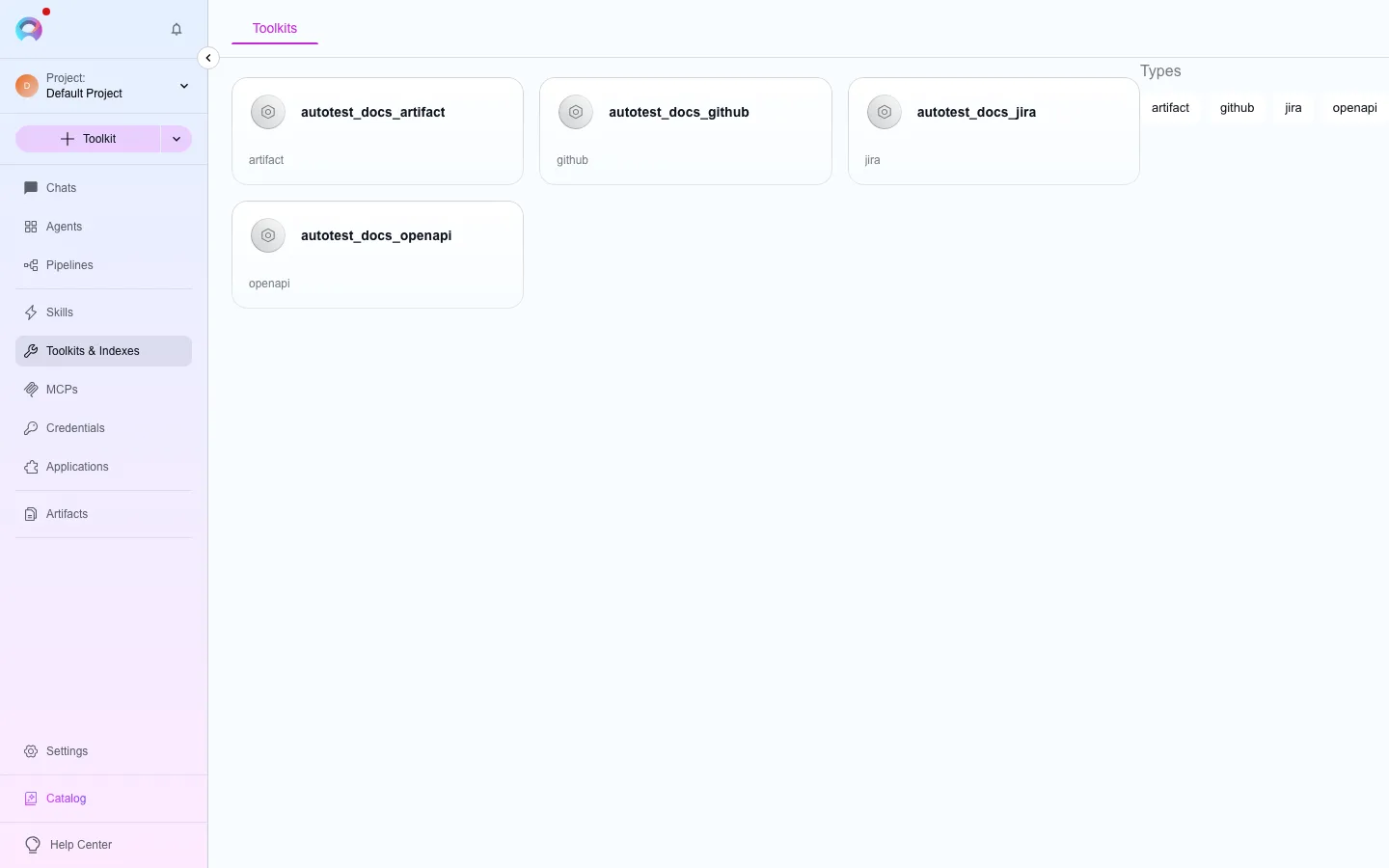
The Toolkits page shows how many toolkits the project has, a search box, Filters and + New toolkit in its toolbar; see Page layout. Filters, in the side panel, has the toolkit Types to filter by and the author card.
Create a toolkit
Section titled “Create a toolkit”Start creation
Select + New toolkit in the Toolkits page toolbar, or the + next to Toolkits in the sidebar.Pick a type
Choose a type from the categorized tile grid, or search by name with the search box in the toolbar.Configure it
Give it a Name and Description, select or create a Credential, and set any type-specific parameters. For index-capable types, optionally select an embedding model to turn on indexing; indexes are kept in the platform’s vector store, so there is no vector-storage setting.Select tools
In Tools, turn on only the operations the toolkit needs — grouped as Read, Create & update, Delete, and Execute — then Save.
Shared credentials in team projects
Section titled “Shared credentials in team projects”If a toolkit uses a shared credential that each team member must supply individually, a Credential setup required banner appears on its card until you create the matching private credential. Changing a shared credential can make the toolkit stop working for teammates who have not configured their own — consider the impact before doing so.
Test a toolkit
Section titled “Test a toolkit”Select Test on a toolkit’s detail page to open a dedicated test view: pick a tool, a model, and any required parameters, then run it and review the result. See Test toolkit tools.
Indexing
Section titled “Indexing”Toolkit types that carry an index_data tool (Artifact, the ADO family, Bitbucket, Confluence, Figma, GitHub, GitLab, Jira, QTest, SharePoint, TestRail, XRAY Cloud, and the Zephyr family) show an Indexes panel once an embedding model is configured and the Index data tool is turned on. Use it to create, reindex, or delete indexes. See Indexing overview.
MCP servers
Section titled “MCP servers”MCP servers extend agents, pipelines, and conversations with tools from an external Model Context Protocol server, configured the same way as a toolkit. The MCPs menu is shown when your administrator has turned on MCP menu exposure.
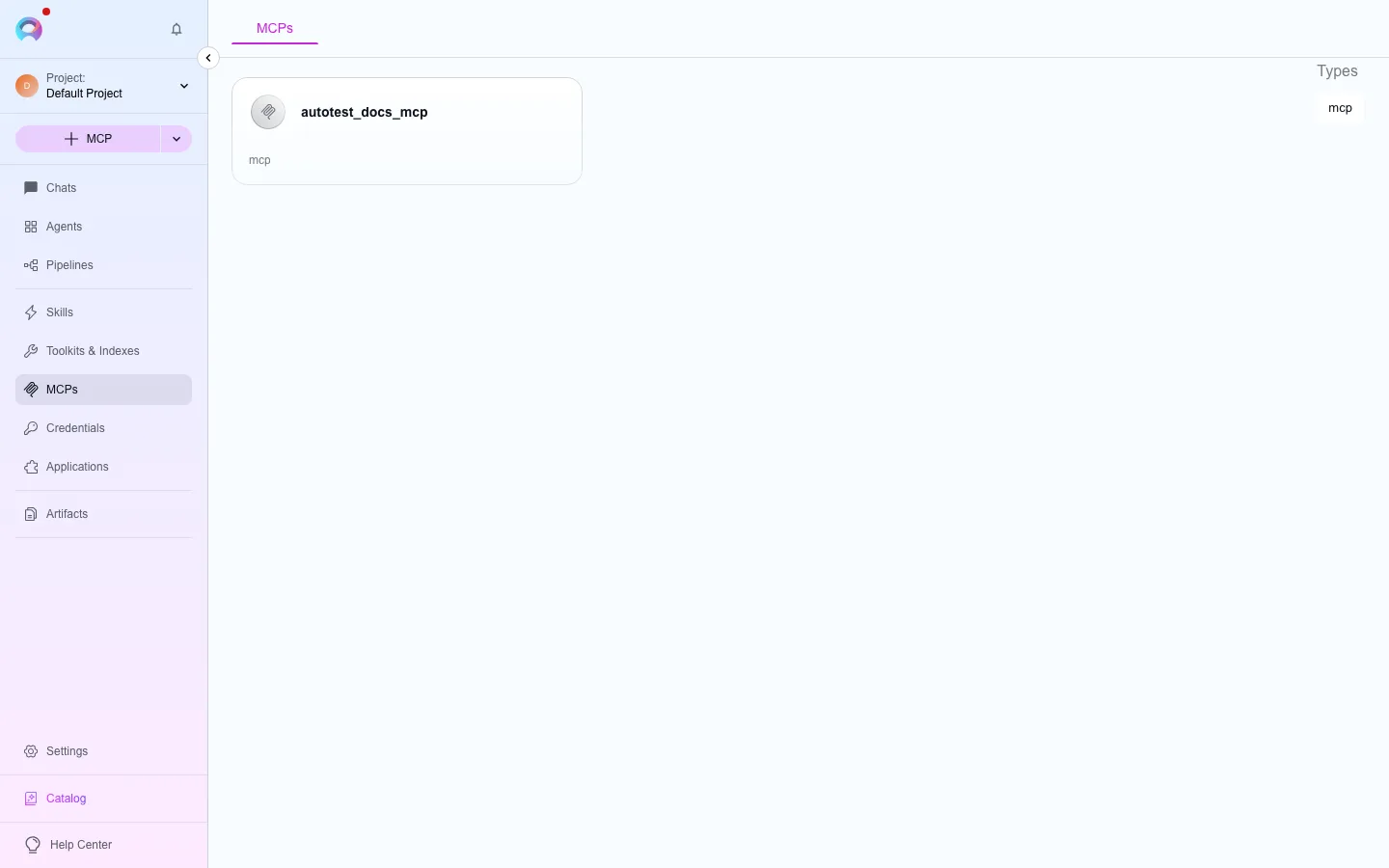
The MCPs page has the same layout as the Toolkits page; create a server with + New MCP.
- Remote MCP — an HTTP/HTTPS-based server. Provide its URL and authentication (a bearer token, OAuth client credentials, or custom headers), then load and select its tools.
- Pre-built MCP servers — administrator-curated connections your project can enable directly. See Pre-built MCP servers.
A connection shows Connected or Disconnected on its card. Elitea’s own MCP connections run over streamable HTTP only — there is no local, STDIO-based MCP server or client in the platform.
Use toolkits and MCPs
Section titled “Use toolkits and MCPs”Attach a toolkit or MCP from an agent’s or pipeline’s Tools section, or add it as a participant directly in a conversation.