

Applications
Applications are complete, focused solutions — not general-purpose toolkits — that open their own interface inside Elitea once configured. Today’s catalogue has two: DeepWiki (wikis) and Inventory. See DeepWiki and Inventory for what each one does.
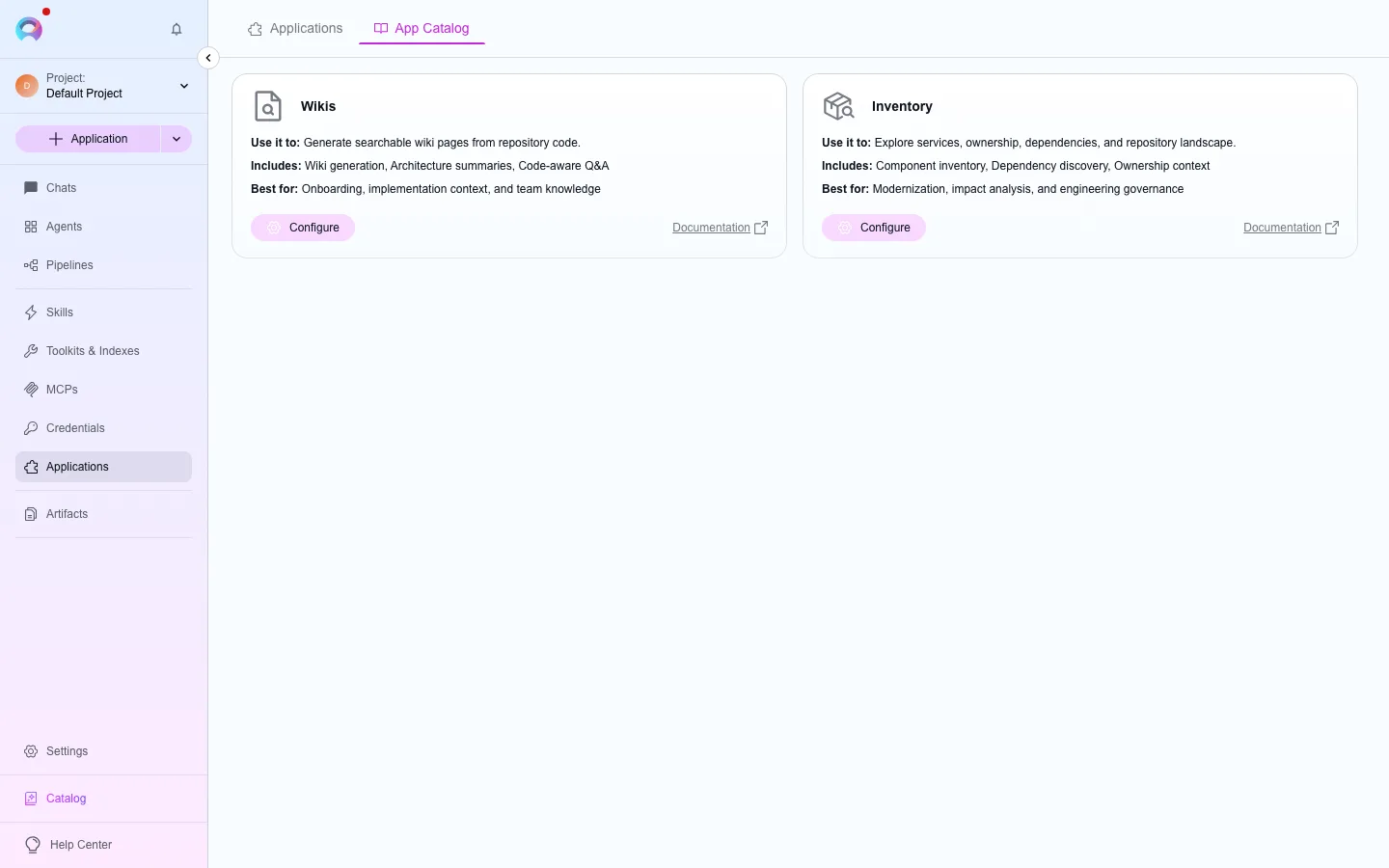
Applications and App Catalog tabs
Section titled “Applications and App Catalog tabs”The Applications tab lists instances already configured in the current project, in card or table view, filterable by type and pinnable for quick access. The App Catalog tab shows every application type available on the platform, each tagged Available, Configured, or By request.
Configure an application
Section titled “Configure an application”Find it
Open App Catalog and find the application you want.Configure
Select Configure — shown only when your project already has access.Fill in the form
For DeepWiki: a code toolkit, an LLM model, a max-token budget, and an embedding model. For Inventory: one or more repository toolkits and the AI model settings.Save
Select Save. The new instance appears on the Applications tab; open it to reach its interface.
Request access
Section titled “Request access”If a catalog card shows By request, select Request Access, describe your use case, and submit. The card then shows Pending approval until an administrator reviews the request through App requests.