

Personal settings
Personal settings apply to you across every project — they never affect what your teammates see.
Profile
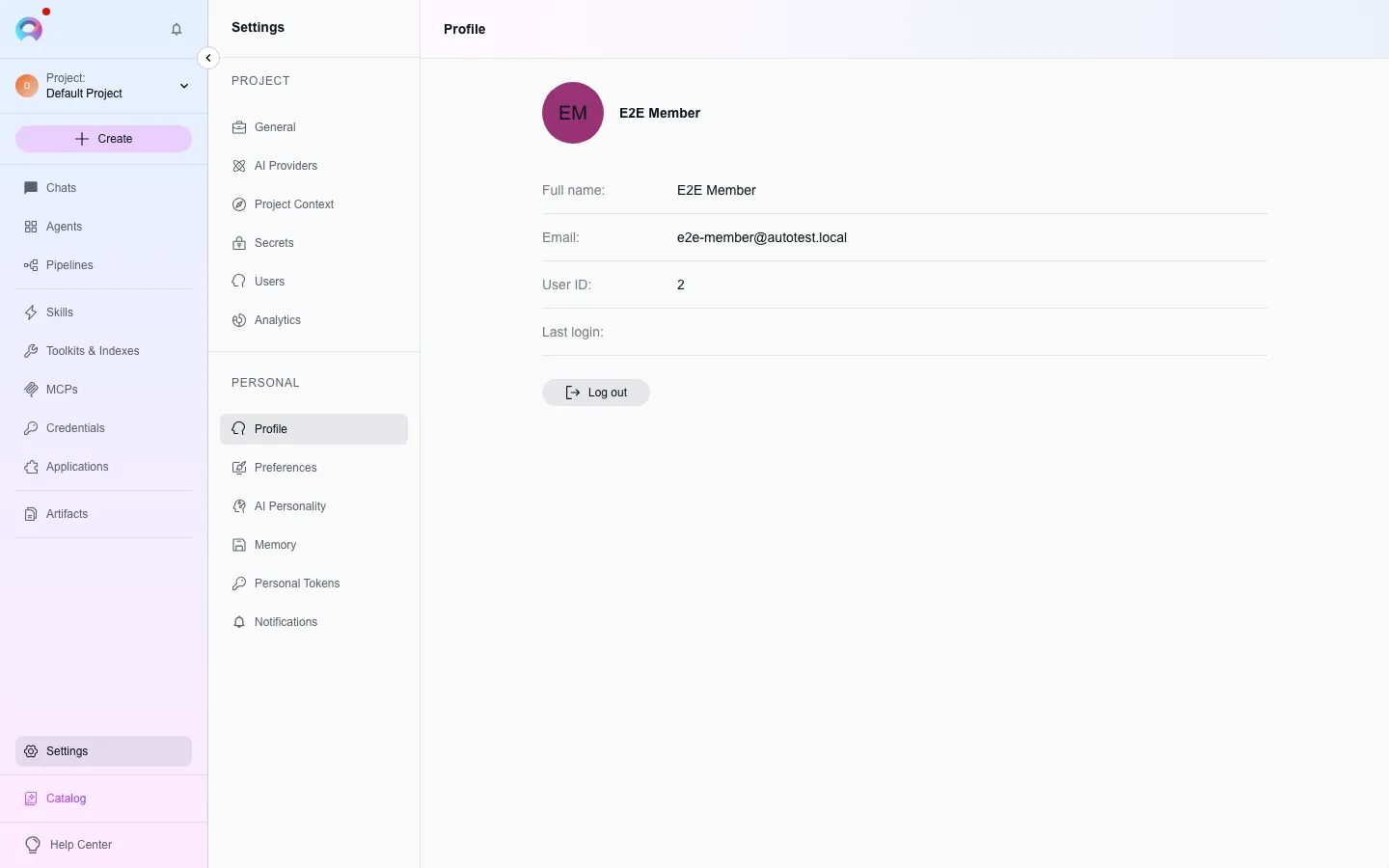
Section titled “Profile”Settings › Profile shows your full name, email, user ID, and last login, and is where you sign out of Elitea.
Preferences
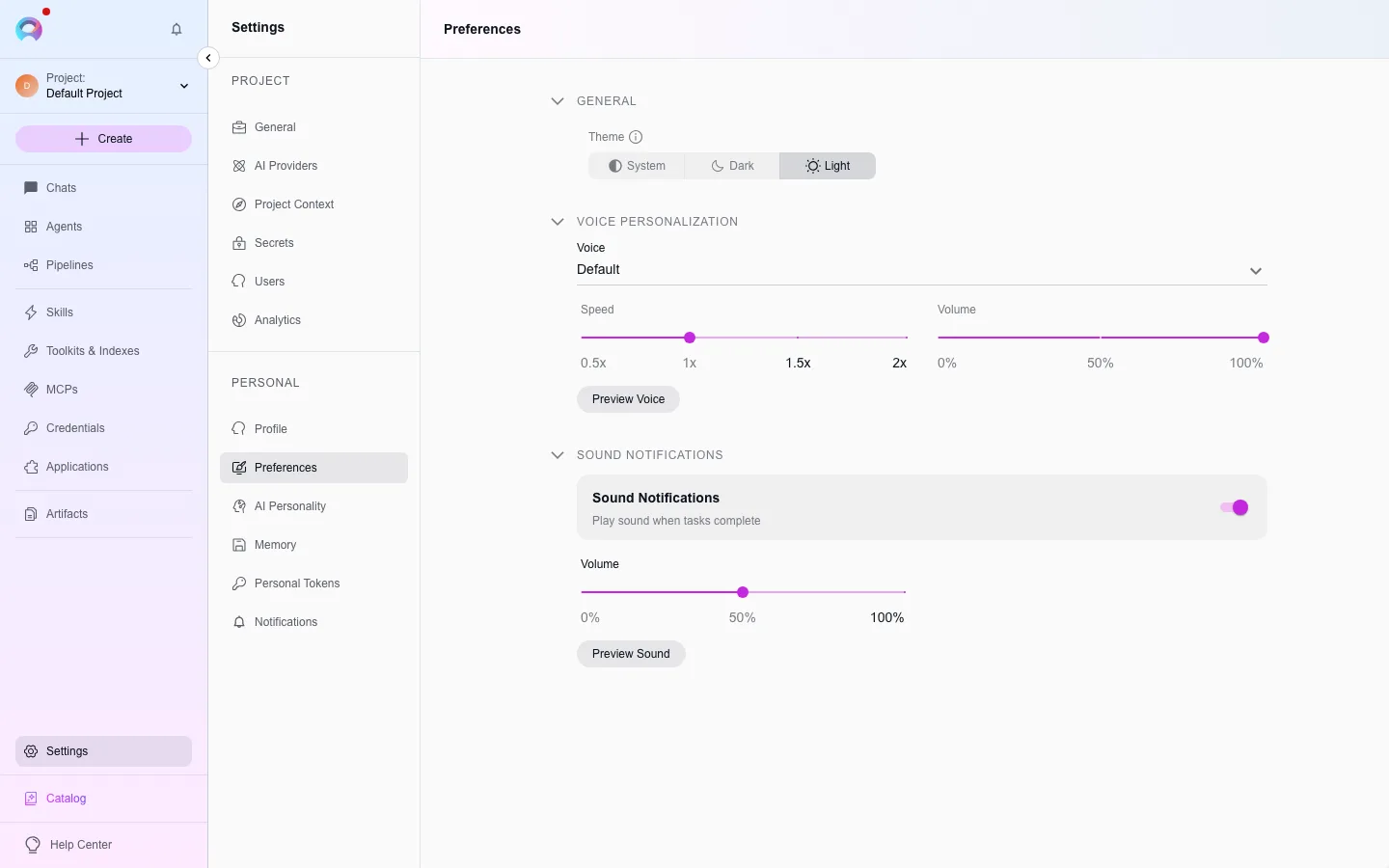
Section titled “Preferences”Settings › Preferences covers three areas:
- General — your theme: Dark, Light, or System.
- Voice personalization — your default text-to-speech voice, speed, and volume, with a preview button. Uses your project’s configured server-side voice model when available, otherwise your browser’s built-in voices.
- Sound notifications — whether Elitea plays a completion sound when a task finishes, and at what volume.
AI Personality
Section titled “AI Personality”Settings › AI Personality sets the default communication style and any standing instructions applied to every new conversation you start.
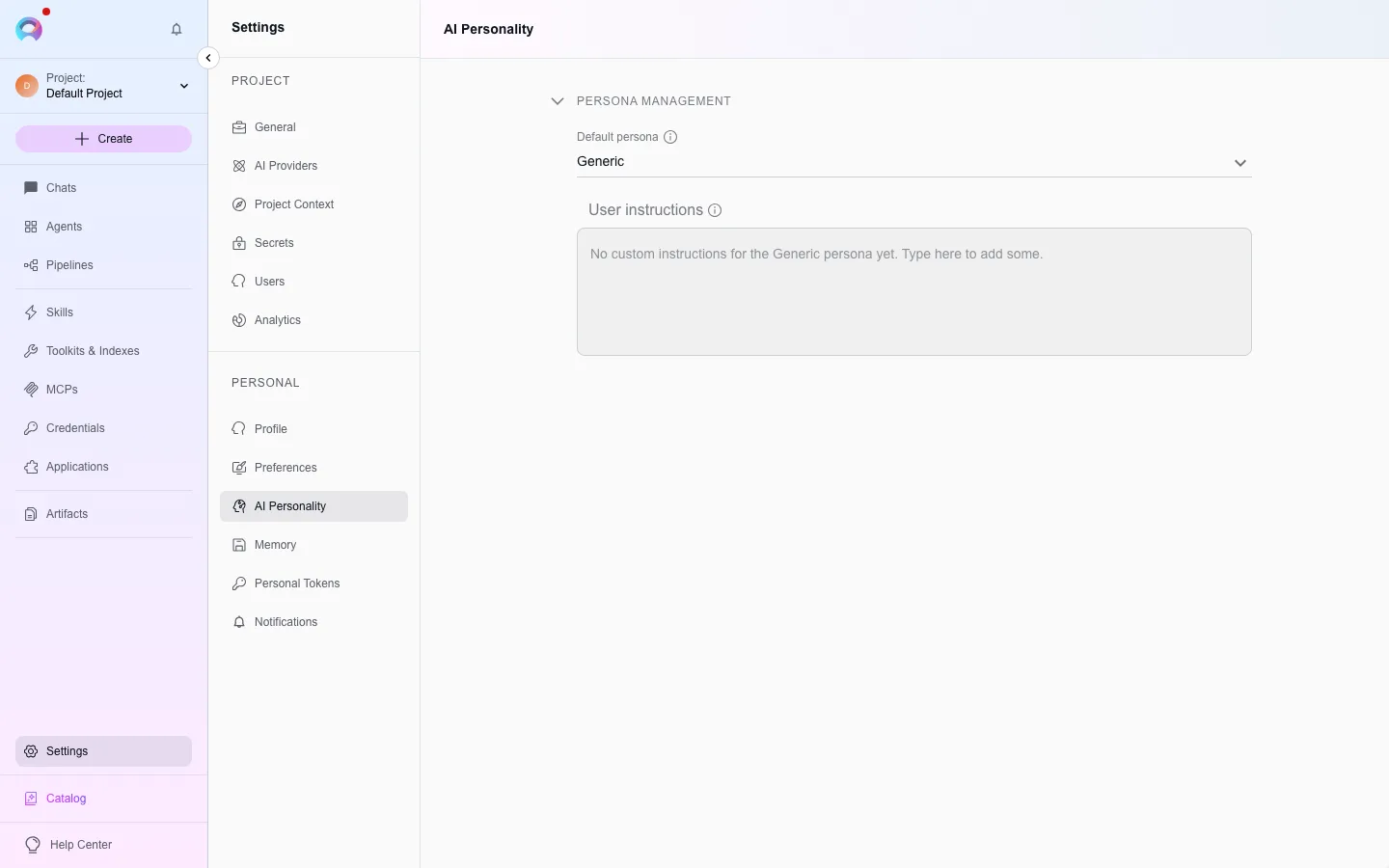
- Default Personality — pick from Generic, QA, Nerdy, Quirky, Cynical, None (no personality overlay), or Bare (no Elitea identity at all, only your instructions).
- User Instructions — free-text guidance (communication preferences, technical requirements, output format) that applies automatically to new conversations, agents, and pipelines. Settings save automatically as you edit; only new conversations pick up a change — existing ones keep what they started with.
Troubleshooting
Section titled “Troubleshooting”A change does not seem to apply
Confirm you are testing in a brand-new conversation — existing conversations keep their original settings.
Personality change has no visible effect
Personality shapes tone and approach, not factual correctness — it is most visible in open-ended or creative requests, not factual lookups.