

Memory
Settings › Memory has two, independent sections: Context management controls how much conversation history is kept as a single conversation grows, and Long-term Memory is a persistent store of facts Elitea recalls in every later conversation in this project.
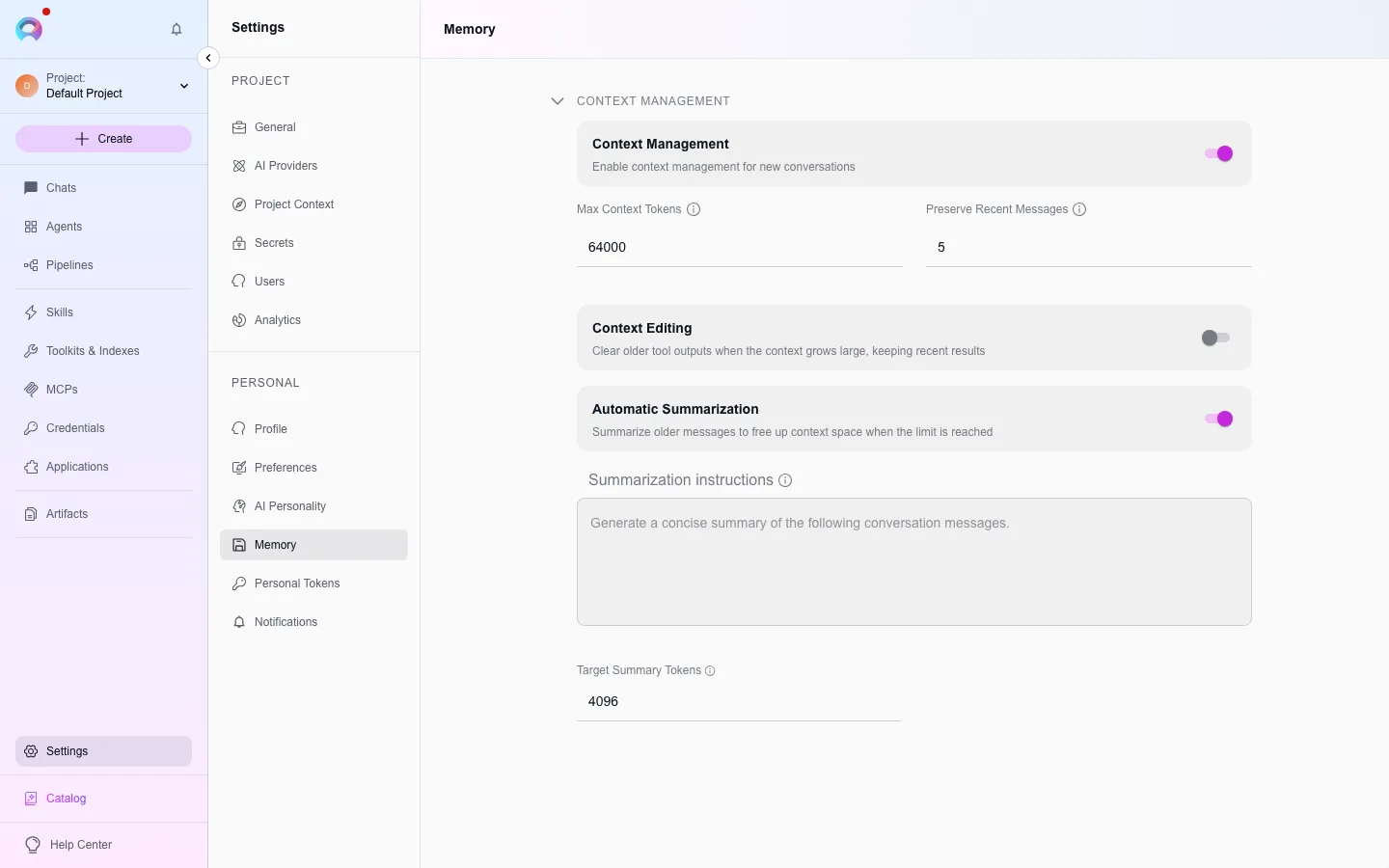
Context management
Section titled “Context management”Turn context management on to have Elitea automatically manage history as it approaches a model’s token limit.
- Max Context Tokens (default 64,000) — the ceiling for conversation history sent per request.
- Preserve Recent Messages (default 5) — the number of most-recent messages always kept, regardless of the token ceiling.
Context editing
Section titled “Context editing”When context management is on, context editing clears older tool outputs from the sent history while keeping recent results, reducing token usage without losing recent detail.
Automatic summarization
Section titled “Automatic summarization”With context management on, turn on summarization to have Elitea condense older messages into a summary once the conversation grows past a threshold, instead of dropping them outright.
- Summarization instructions — free text guiding style and focus of the generated summary.
- Target Summary Tokens (default 4,096) — the target length for each generated summary.
Context management settings apply to every new conversation you start in Chat, Agents, and Pipelines in this project. Existing conversations, and conversations started by other users, keep their own settings.
Long-term Memory
Section titled “Long-term Memory”The Long-term Memory section is a list of facts Elitea remembers about you — not tied to one conversation. A memory you save here is recalled by Elitea in every later conversation in this project, unlike context management above, which only manages history inside a single conversation.
Add a memory
Section titled “Add a memory”Select Add memory and describe a fact you want Elitea to know about you going forward — for example, “Prefers TypeScript over Python for new services.” Optionally add comma-separated tags to help you find it again later. New memories are enabled by default.
Manage your memories
Section titled “Manage your memories”Each row shows the memory’s text and tags, with:
- An enabled switch — turn a memory off to stop it from being recalled without deleting it.
- Edit — change the text, tags, or enabled state.
- Delete — remove one memory permanently.
Use the search box to filter the list by content or tag. Clear all deletes every memory in this project after a confirmation — this cannot be undone.
Use my memories in chat is a master switch above the list. It is a shortcut, not a separate setting: turning it off disables every currently-enabled memory in one action, and turning it on re-enables every memory that was on before. There is nothing else it controls.
Save a memory from a chat message
Section titled “Save a memory from a chat message”You do not have to come back to Settings to save a memory. On any assistant answer in Chat, select the bookmark icon (Remember this) next to the message’s other actions to save that answer’s text as a new, enabled memory. A small confirmation icon shows it was saved.
How recall works
Section titled “How recall works”At the start of a chat turn, Elitea reads your enabled memories in this project and adds a bounded selection of them to the assistant’s context, alongside the conversation’s own history:
- Memories matching keywords in what you just typed are preferred, then the most recently saved ones fill any remaining room.
- Recall is bounded — only a limited number of memories, and a limited amount of text, are added to any one turn, so a large memory list never crowds out the rest of the conversation.
- A turn that used at least one memory shows a small “Using N memories” indicator next to its timestamp.