

Add teammates to a conversation
Add a teammate
Section titled “Add a teammate”Open the add-participants control
In the Participants panel, click the add-participants icon.
Search and select
A dialog opens with a search box listing project members. Search by name and select one or more people.
Confirm
Click Add. The people you selected appear in the Users section of the Participants panel and receive a notification that they’ve been added.
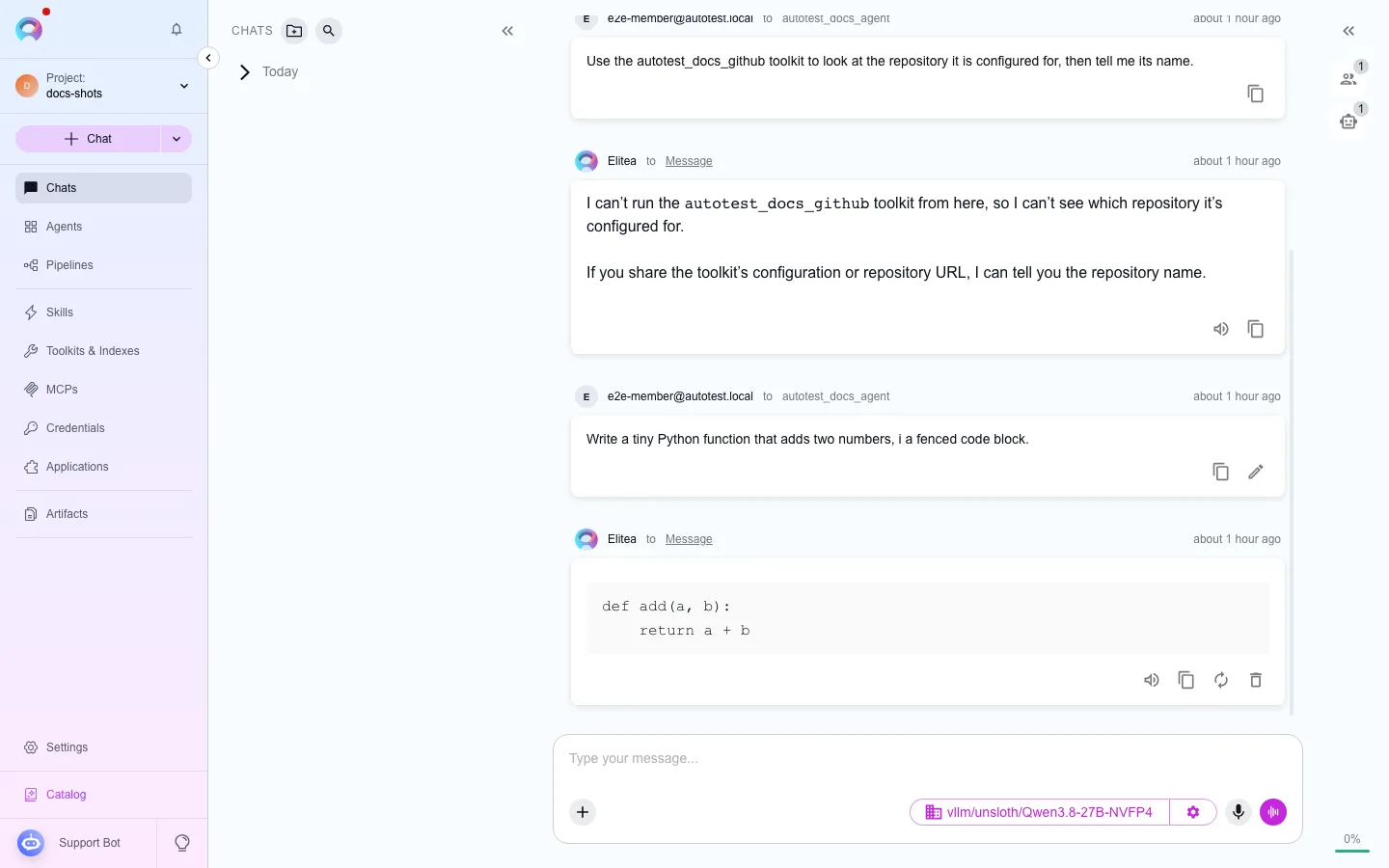
Mention a teammate
Section titled “Mention a teammate”Type @ in the message box to open a suggestion list of everyone in the conversation, then pick a name (or select Everyone, shown once the conversation has two or more human participants, to notify the whole group). A mention only directs the message at that person — agents and pipelines in the conversation don’t treat it as an instruction to act.
Remove a teammate
Section titled “Remove a teammate”Open the Users list in the Participants panel, hover over the person’s name, and click the delete icon that appears, then confirm. You can’t remove yourself this way.
Who can see the conversation
Section titled “Who can see the conversation”Adding a teammate only shares the conversation with the people you explicitly add — it does not make the conversation visible to the rest of the project unless someone also marks it public (see Use chat for visibility rules). Removing a teammate stops their access going forward but doesn’t retroactively hide messages they’ve already read.
This is different from adding an agent, pipeline, or toolkit as a participant — those are attached from the composer’s + menu, not this dialog, and they don’t count toward “teammates.” See Use chat for that flow.