

Test toolkit tools
Before attaching a toolkit to an agent or a chat, you can run one of its tools directly to confirm the credential works and the tool returns what you expect.
Run a test
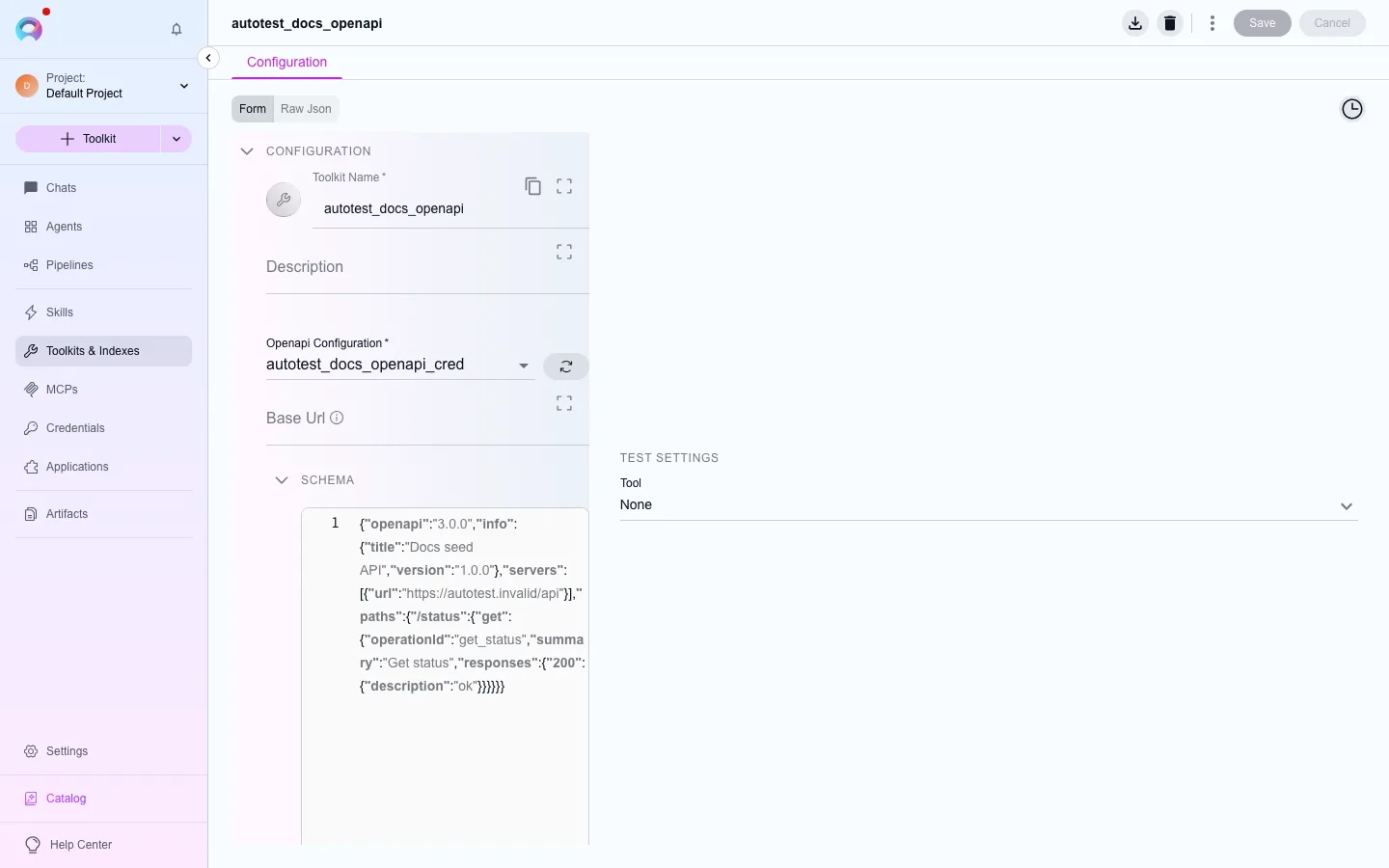
Section titled “Run a test”- Open a saved toolkit’s configuration page (unsaved changes disable testing — save first).
- Open its Test tools pane.
- Pick a tool from the list and fill in its arguments.
- Choose a model if the tool needs one, and run it.
- Read the result in the transcript alongside the run.
What testing verifies
Section titled “What testing verifies”A successful run confirms the credential authenticates and the tool’s arguments are valid for your instance of the external service — useful before wiring the toolkit into an agent where a failure is harder to diagnose. A failing run typically means a credential problem, a permission problem on the external service, or an argument the service rejects.
Run history
Section titled “Run history”The clock icon on a saved toolkit’s Configuration tab opens History: every past conversation that attached this toolkit, newest first, with its date, a derived duration, and its message count. Select a run to see its recorded trace — the tool calls the runtime logged for that conversation. A toolkit with no past conversations shows an empty state rather than a blank panel.
Choosing which tool to test first
Section titled “Choosing which tool to test first”If a toolkit exposes many tools, start with the simplest read-only one (a list or search operation) rather than something that writes to the external system. That confirms the credential and connection work before you risk a test run creating or modifying real data in Jira, GitHub, or whichever service the toolkit reaches. Once a read tool succeeds, move on to testing the write tools you actually plan to use.
Next steps
Section titled “Next steps”- Use credentials in a toolkit if the test fails on authentication.
- Index and search data with tools for search tools once an index exists.