

Use public items from chat
Published agents from other users (and your own) show up alongside your private ones when you search for a participant, marked with a public badge. You can attach and run them immediately — no setup required.
Find and use a public agent
Section titled “Find and use a public agent”Type # in the composer and search by name, or open the + menu’s Agents category — both list your own agents together with published ones, publicly marked. Select one to attach it as a participant, then click it in the Participants panel to make it active and send your message.
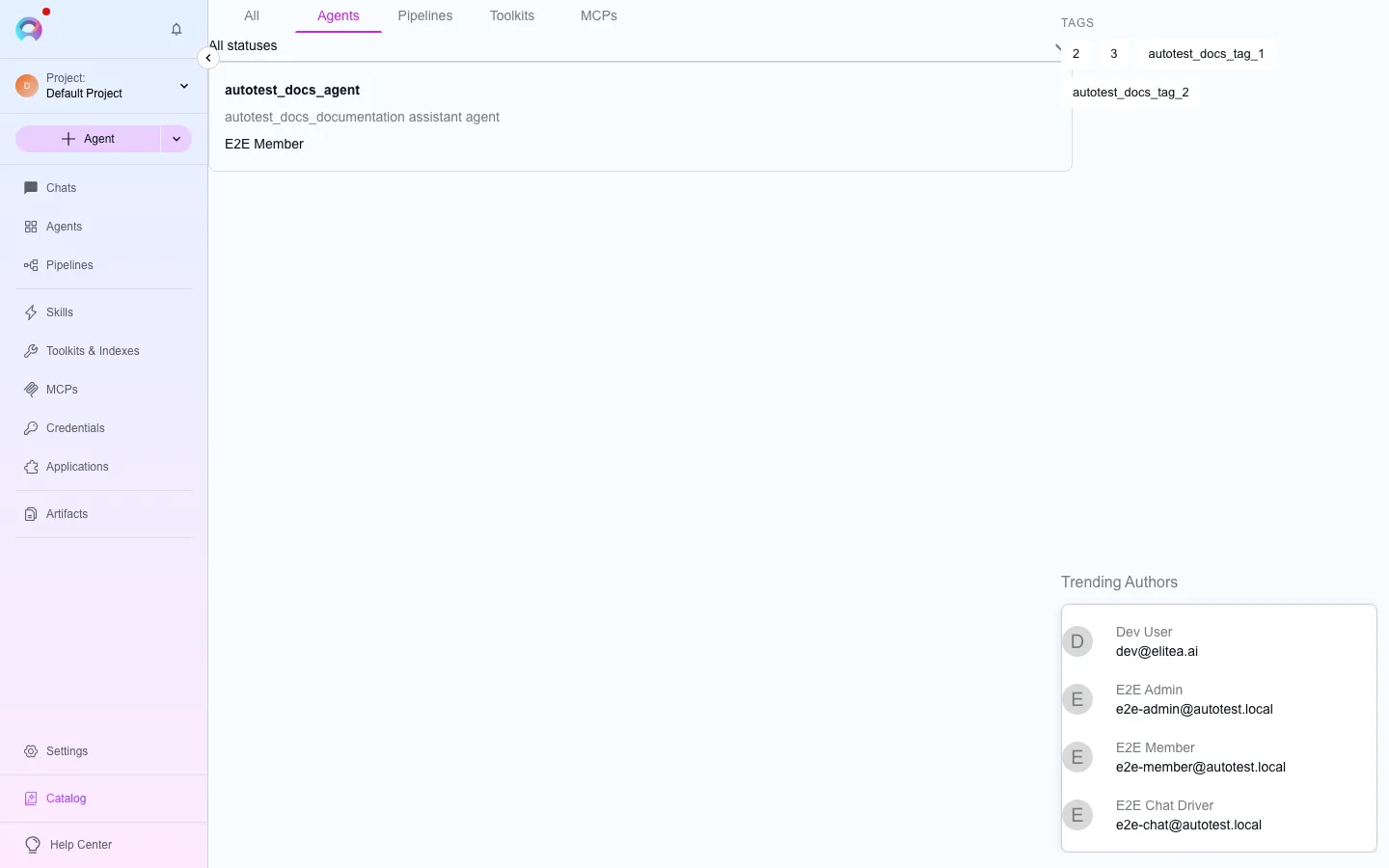
You can also browse everything published in the project from the catalog, or open a specific published item directly at its public URL.
What you can and can’t change
Section titled “What you can and can’t change”Opening a public agent’s settings gives you a read-only view of its core configuration. You can temporarily change the model, model settings, and variables for your current conversation only — those changes are not saved and reset the next time you start a new conversation with that agent. You cannot edit or save its instructions, toolkit configuration, or other core settings, and you cannot unpublish or delete someone else’s agent.
If you want to keep a customized version, create your own agent and adapt the public one’s approach rather than trying to save over it.
Publishing your own
Section titled “Publishing your own”The same catalog works both ways — once you’ve built an agent you’re happy with, you can publish it so other project members can find and attach it the same way. See Publish agents and skills for how review and moderation work before your agent shows up as public to others.
Public toolkits and pipelines follow the same read-only pattern — you can attach and run them, but not edit their saved configuration.