

Publish agents and skills
Publishing submits an agent version or a skill for review, then makes it available in the shared catalog (Agent HUB / the Elitea Catalog’s Skills tab) once approved. Pipelines cannot be published — this applies to agents and skills only.
Publish an agent version
Section titled “Publish an agent version”Open Publish
Open the agent, select the version you want to publish, and choose Publish from the toolbar’s three-dot menu.
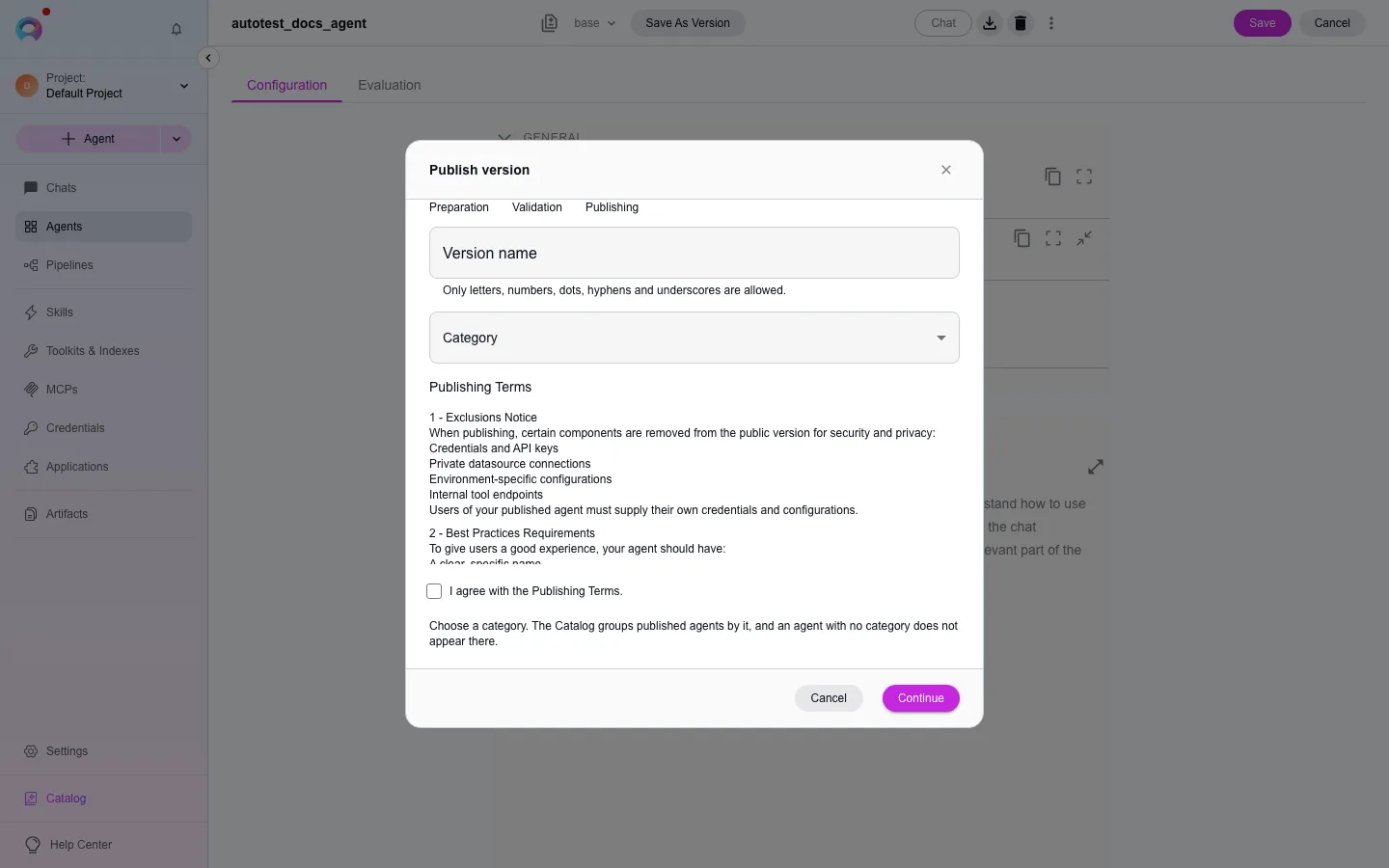
Preparation
Enter a unique version name (letters, numbers, dots, hyphens, underscores; up to 50 characters) and pick a category from the project’s configured list. Agree to the publishing terms to continue.
Validation
Elitea runs an automated AI review of the version and reports critical issues, warnings, and suggestions. A failing result stops the wizard here; a pass or warning-only result lets you continue.
Publishing
Confirm to submit. The version goes to the moderation queue for admin review before it appears in the catalog.
Any skills attached to the agent are kept and still work at runtime, but publishing the agent does not separately publish those skills as their own catalog entries.
Publish with approval
Section titled “Publish with approval”An agent at risk tier medium or above cannot be published in one step. Publishing it takes a change request that someone other than you approves, after the agent’s evaluation gate passes. The tier, the number of approvals and the gate are described in Agent lifecycle. An agent’s tier is shown in ⋮ › Governance › Registry.
As the author: request a publish
Section titled “As the author: request a publish”Open Publish
Open the agent, select the draft version, and choose Publish from the three-dot menu. For a
medium,highorcriticalagent, the Request publish dialog opens instead of the publish wizard.Describe the change
Write a summary for the approvers: what changed and why, and a link to your ticket if you have one. Enter the version name and category, and agree to the publishing terms.
Submit
Select Submit for approval. The change request is submitted and the agent’s gate suites start running. The dialog shows how many approvals the request still needs.
Follow the request in ⋮ › Governance › Change requests. If you save the version again before it is approved, the approval is refused as stale: withdraw the request and submit a new one.
As an approver: review the evidence
Section titled “As an approver: review the evidence”Open the request
Open the agent and select ⋮ › Governance › Change requests, then the submitted request.
Check the evidence
Read the summary and the Release gate block: its state, each failure, and every regression case listed by name. Check that the tier’s mandatory attestations are present in the Attestations tab. Compare the candidate with the current release in ⋮ › Release history.
Decide
Select Approve or Reject (with a reason). You cannot approve your own request. The approval that completes the tier’s requirement publishes the version and certifies the agent.
As a governance role holder: override a failed gate
Section titled “As a governance role holder: override a failed gate”If the gate failed for a reason you accept (for example, a test case that is wrong), open the request, select Override gate, and enter a reason of up to 200 characters. The gate stays failed, and the override, with your name and reason, is recorded in the security audit log. The request still needs its approvals. You cannot override the gate of your own request.
Recertify an agent
Section titled “Recertify an agent”When an agent is due, open ⋮ › Governance › Change requests and select Start recertification. It runs the gate against the current release and collects the same approvals, without changing the definition.
Publish a skill
Section titled “Publish a skill”Skills publish the same way, from a skill’s three-dot menu — but a skill has a single version, so there’s no version selector: you publish the skill as it currently stands.
Open Publish
On the skill’s page, choose Publish.
Name and categorize
Enter a version name and pick a category, as with an agent.
Review the gate
Elitea runs a set of structural checks (not an AI review) and reports which passed, which are warnings, and which block publishing. A failing check must be fixed before you can continue — there’s no “publish anyway” past a failure.
Publish
Confirm. The skill is submitted for moderation, same as an agent.
Unpublish
Section titled “Unpublish”Unpublishing removes the item from the catalog immediately (no moderation step) and returns its status to Draft. You get an in-app notification when your agent or skill is published, rejected, or unpublished by a moderator.