

Projects
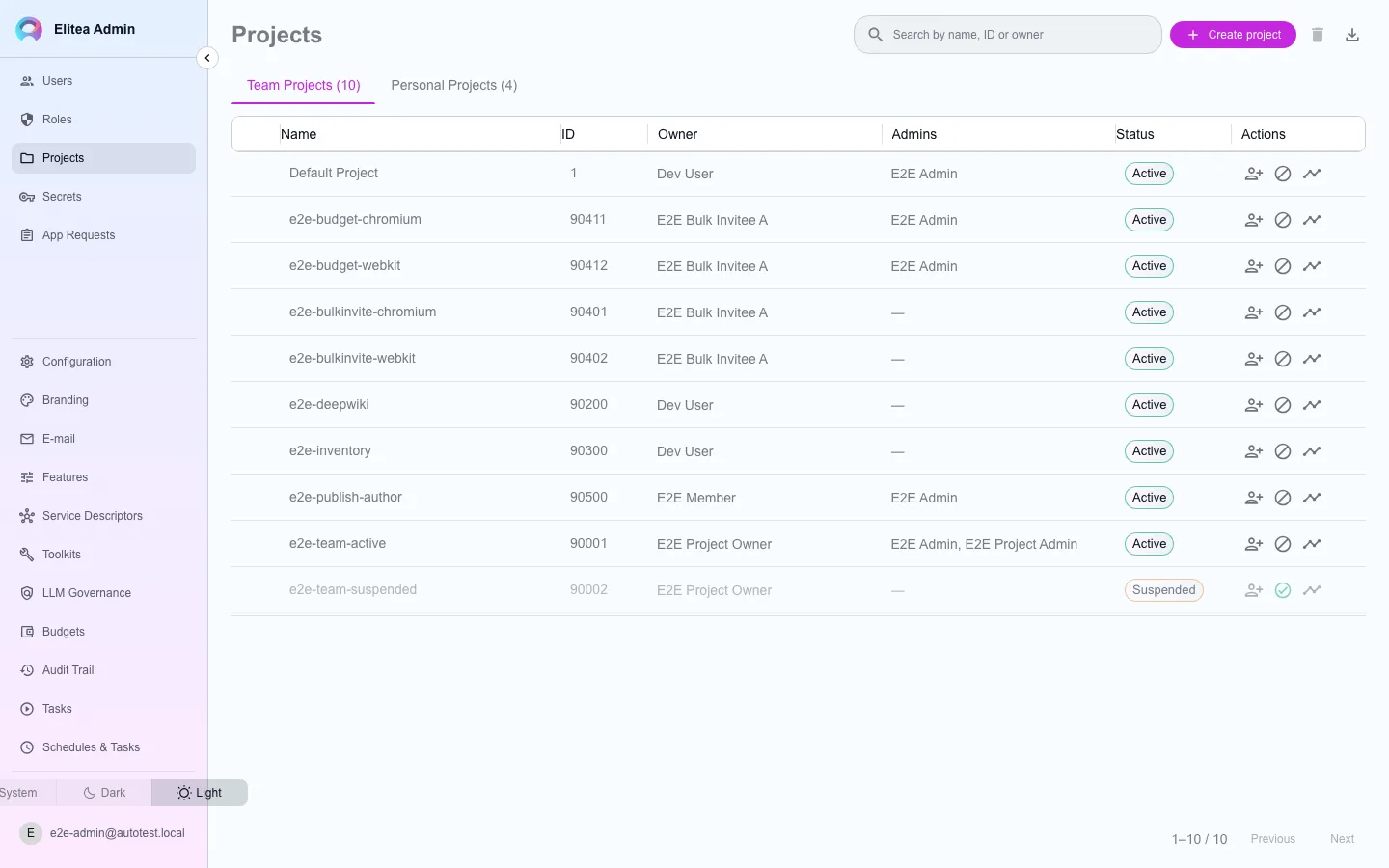
The admin Projects page is the deployment-wide project list. Every project — team or personal — appears here, regardless of who owns it. This is the one place an administrator sees and acts on every project at once, rather than one project’s own Settings page at a time.
Manage an existing project
Section titled “Manage an existing project”Find the project
Search the table by name.
Suspend or unsuspend it
A suspended project’s members lose access until it is unsuspended.
Add a project admin, or change a member's role
Both are available from the project’s row menu.
Export
Export to CSV downloads the current list.
Create or delete a project
Section titled “Create or delete a project”Both actions run a multi-step process rather than a single database write: creating a project provisions its record, quota, dedicated schema, permission set, a system user and token, vault secrets and storage buckets together (vectors need no per-project store: they live in the platform’s vector store, keyed by project); deleting one reverses the same steps, deletes the project’s vectors, and ends in dropping the project’s schema. Each step’s status is tracked individually, and a failed attempt is compensated rather than left half-applied.
Approving a member’s project request
Section titled “Approving a member’s project request”A member does not have to ask you directly. From the project switcher, + Request a project opens a small form — a name and a justification — that files a request the same way the App Requests moderation pattern already handles application access (see App requests and toolkit types). It lands on this same App Requests page, under the “Project Request” issue type.
Filter the queue
On App Requests, set the Issue Type filter to Project Request.
Approve or reject
Approve runs the same multi-step creation process described above — schema, permissions, vault, the lot — with the requester made the new project’s admin. Reject requires a reason, exactly like any other app request, and creates nothing.
The requester is notified either way
Approving names the new project’s id in the queue and in the requester’s notification; rejecting delivers your reason.