Chat quick start
Chat is the center of Elitea: every agent, pipeline and toolkit is something you can bring into a conversation and talk to directly.
Open chat
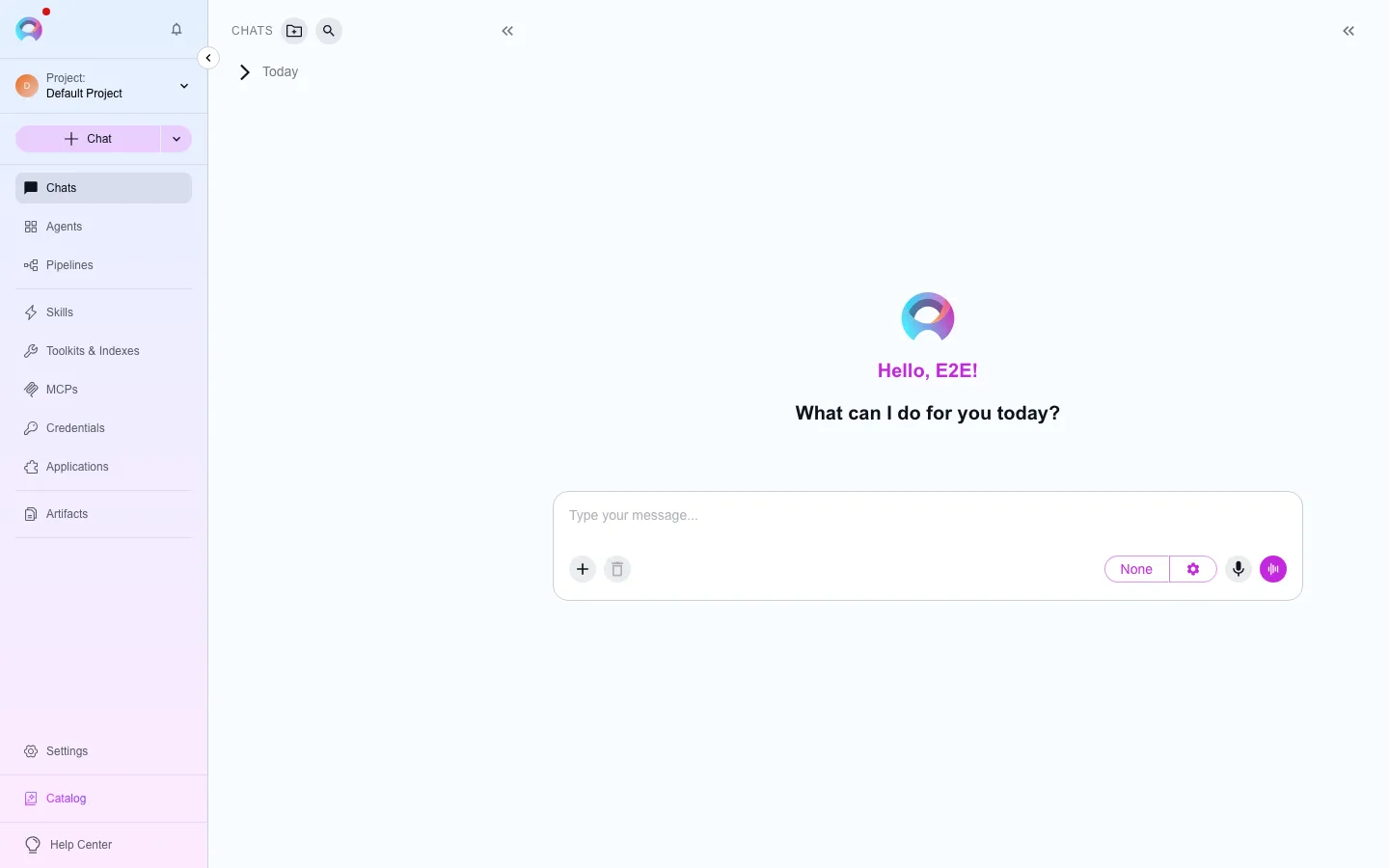
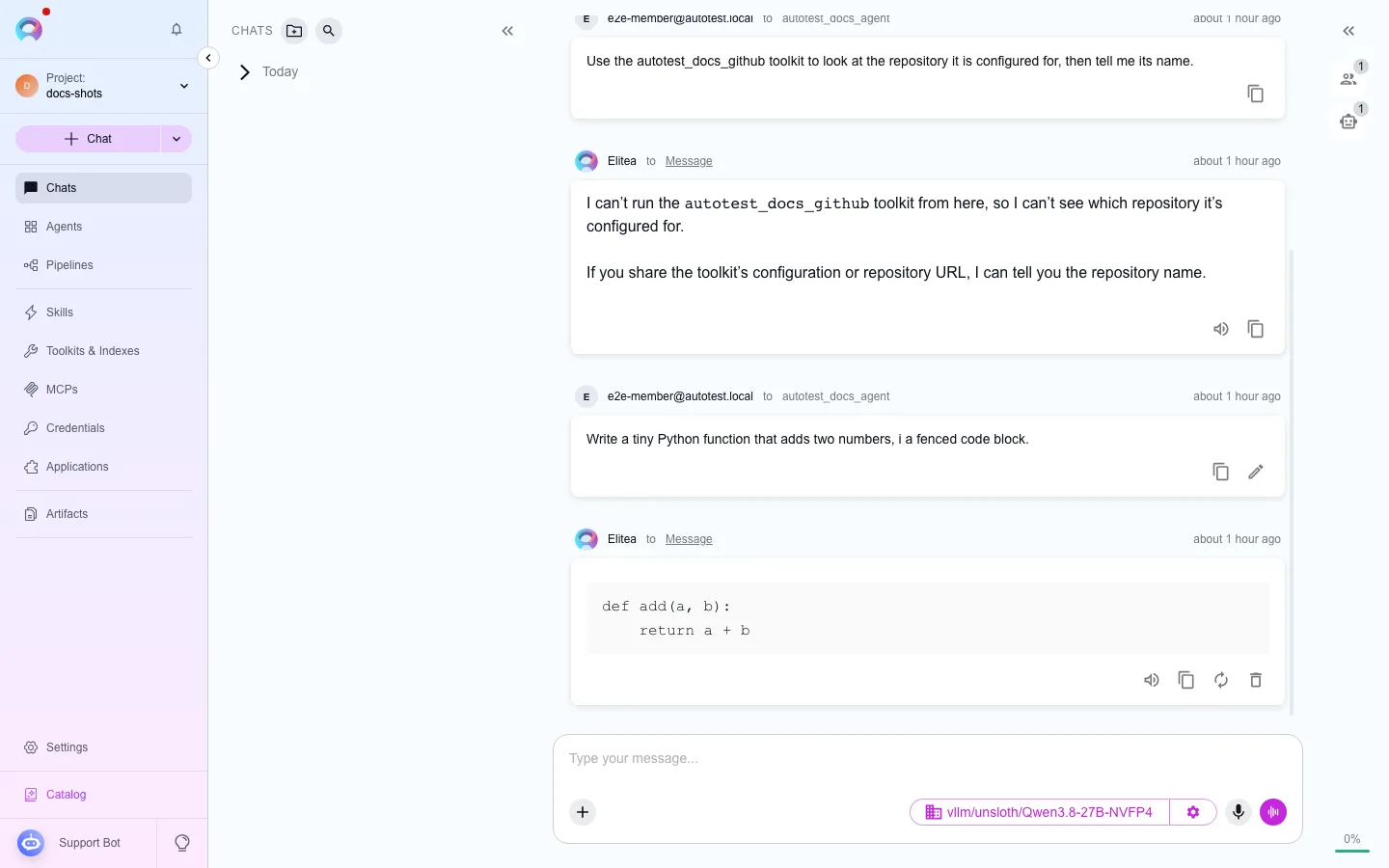
Sign in and click Chat in the left sidebar (you’re redirected there automatically if it’s your first visit and you have no existing conversations). You’ll see three areas: a conversation list on the left, the message history and composer in the center, and a participants panel on the right.
Pick a model and send a message
Open the model selector at the bottom of the composer, choose a model, then type a message and press Enter or click send. A reply from the model confirms everything is wired correctly.
Add a toolkit as a participant
Toolkits give the model access to external services such as Jira, GitHub or Confluence. Toolkits are created on their own page first, then attached to a conversation:
- Go to Connect a toolkit quick start and create a Jira toolkit (or use one you already have), including its credential.
- Back in chat, click the + button above the composer and open Toolkits.
- Select your toolkit from the list. It appears in the participants panel and the model can now call its tools.
- Ask something the toolkit can answer, for example “Find all open bugs in project ABC”.
Attach a file (optional)
Click the paperclip icon in the composer, or drag a file into the message area, to give the model something to analyze. See Attach files to a conversation for supported types and size limits.
Reuse a conversation as an agent
Section titled “Reuse a conversation as an agent”Once a conversation is configured the way you like — model, toolkits, instructions — you can save that setup as an agent so you don’t have to rebuild it every time:
- Create the agent on its own page at
/agents/create, with the same toolkits and instructions you used in chat. - Back in chat, open the + menu, go to Agents, and select it as a participant.
- From then on, selecting that agent brings its whole configuration into the conversation.
You can also edit an agent’s instructions from inside a conversation once it’s already a participant — see Edit agents, pipelines, toolkits and MCPs from chat.
Try a public agent
Section titled “Try a public agent”Other users in your project may have published agents you can reuse without building your own:
- Open the + menu, go to Agents, and look for items marked Public.
- Select one to add it as a participant.
- Send a message — the agent responds using its own instructions and toolkits.
You can also browse public agents directly at /elitea-catalog or under a user’s public profile. See Use public items from chat for the full picture.