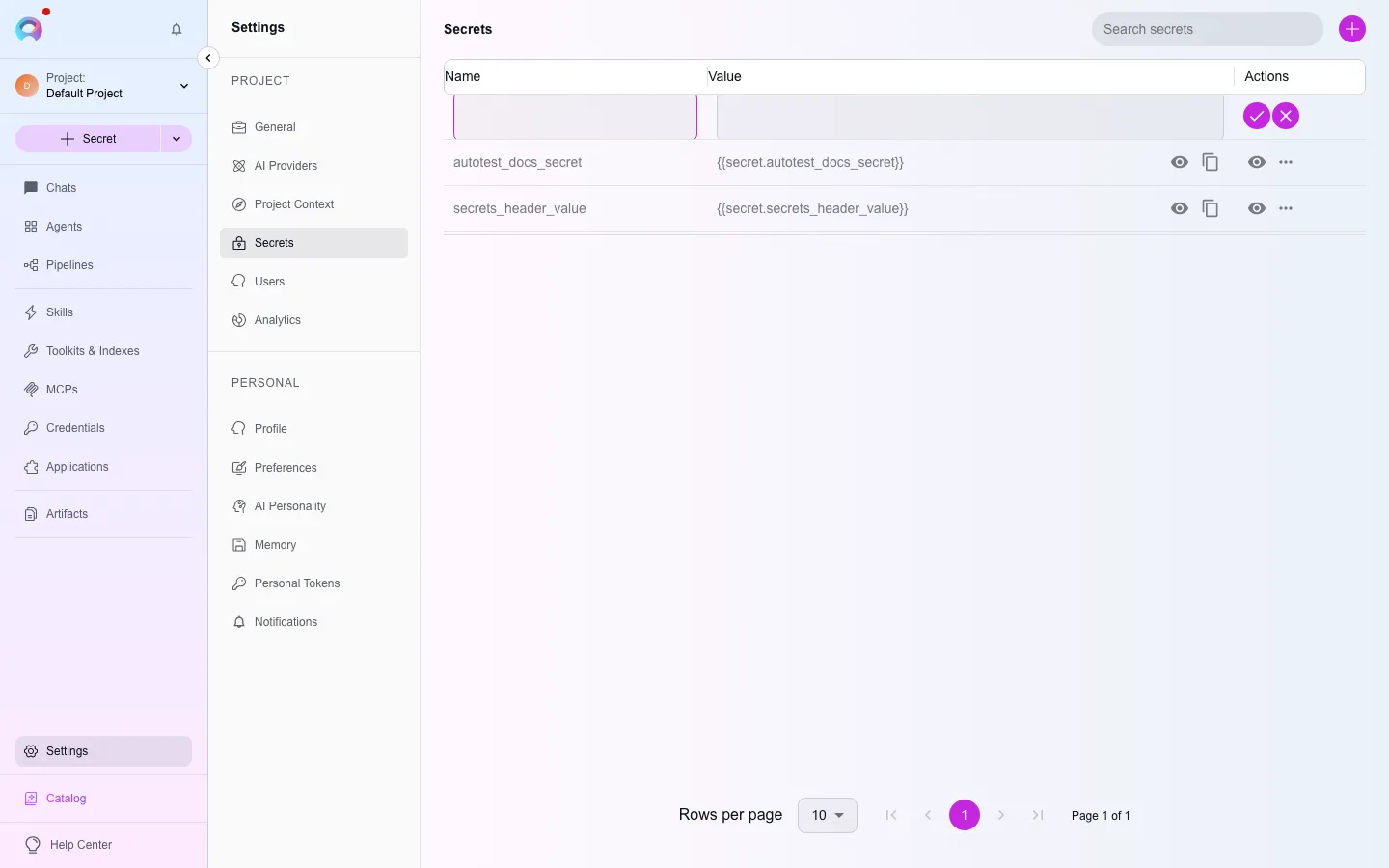
Create a secret
The Secrets vault stores sensitive values — passwords, tokens, API keys — encrypted, so credentials and toolkits can reference them by name instead of carrying a raw value.
Open Secrets
Go to Settings → Secrets (
/settings/secrets).Create a secret
Click the + icon, give it a descriptive name, and paste the value.
Save it
Once saved, the secret appears in the secrets table. Click the eye icon to reveal its value, click the hidden value to copy it, and use the row actions to edit or delete it.
Reference a secret from a credential
Section titled “Reference a secret from a credential”Instead of pasting a raw token or password into a credential field, reference the secret you stored:
- Open or create a credential (
/credentials/create-credential). - On a field like API key, token or password, switch it to reference a secret instead of typing a value.
- Pick your secret from the dropdown. The field now stores
{{secret.<name>}}rather than the raw value, and the credential resolves it at call time.
If you rotate the secret’s value later, every credential referencing it picks up the new value automatically — you don’t have to update each credential individually.
Good practice
Section titled “Good practice”- Never hardcode credentials — store sensitive values as secrets and reference them.
- Use one secret per integration rather than reusing a single value everywhere.
- Rotate secrets regularly, and delete ones you no longer use.
- Name secrets so their purpose is obvious to a teammate later (for example
jira-service-account-tokenrather thantoken1) — the name is the only hint anyone gets before revealing the value.
Related
Section titled “Related”